HDMI Splitters, Switches and Extenders
An HDMI cable connects one device to one screen. As soon as you want one box on two TVs, three consoles on one TV, or a screen in another room, you need a small piece of extra equipment. This guide explains what splitters, switches, matrices, extenders and repeaters each do, so you can pick the right one.
Which one do I need?
| You want to | You need |
|---|---|
| Show one source on several screens at the same time | HDMI splitter (1 in, 2, 4 or 8 out) |
| Connect several sources to one screen and choose between them | HDMI switch (2, 3 or 4 in, 1 out) |
| Send any of several sources to any of several screens | HDMI matrix switch |
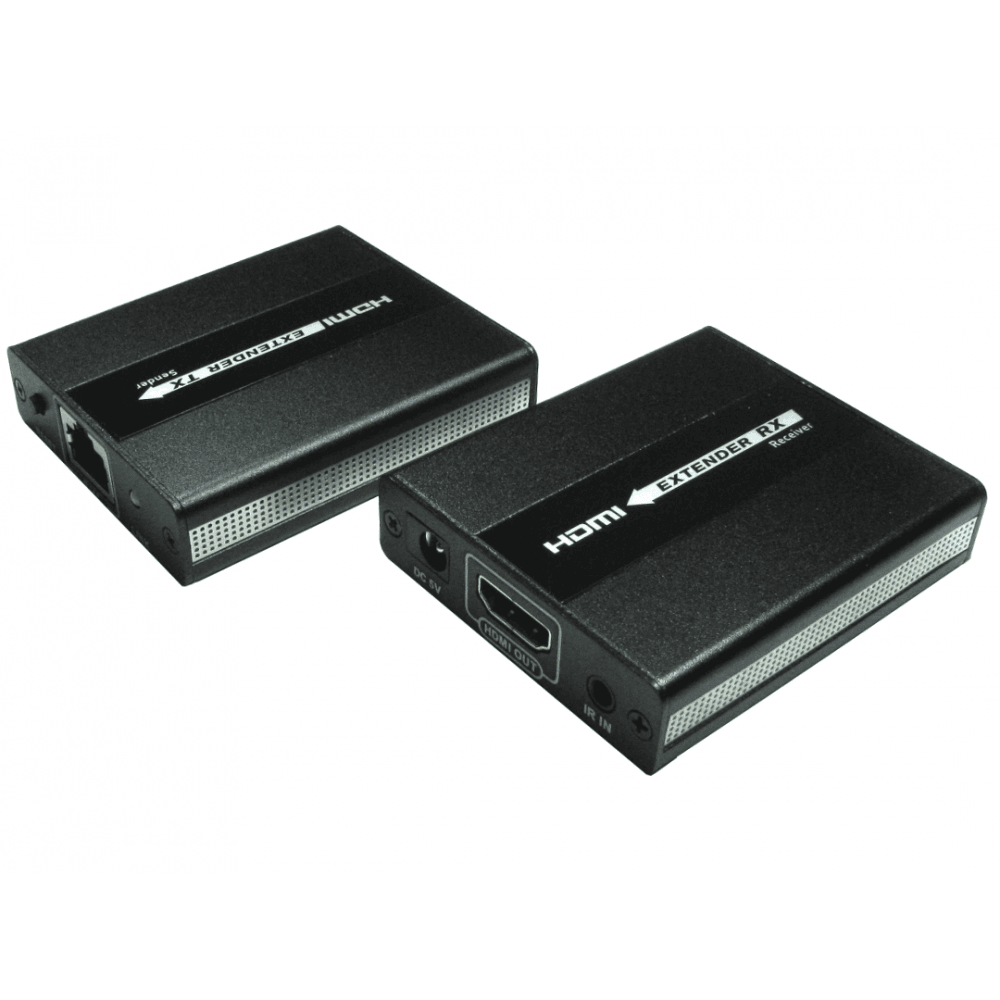
| Get HDMI to a screen in another room or across a building | HDMI over Ethernet extender |
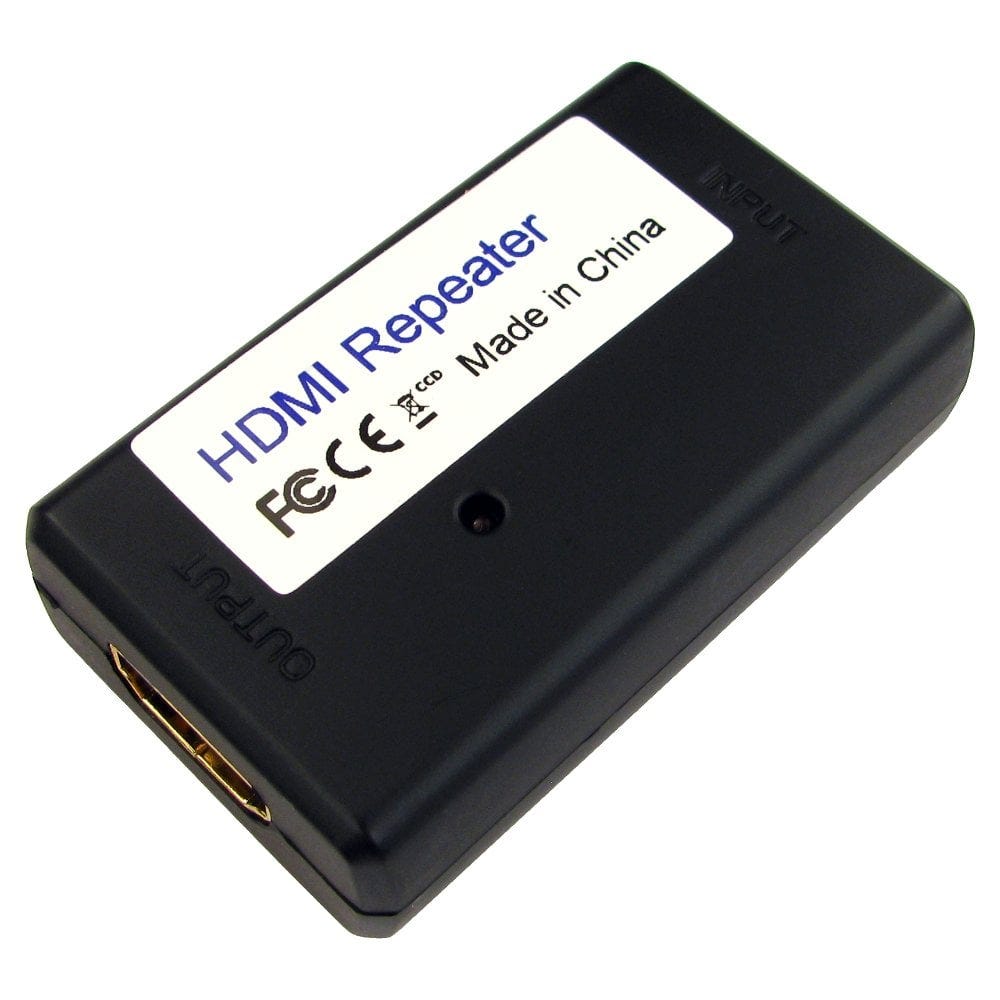
| Strengthen the signal partway along an HDMI cable | HDMI repeater or booster |
The easiest way to remember: a splitter is one source to many screens, a switch is many sources to one screen.
HDMI splitters
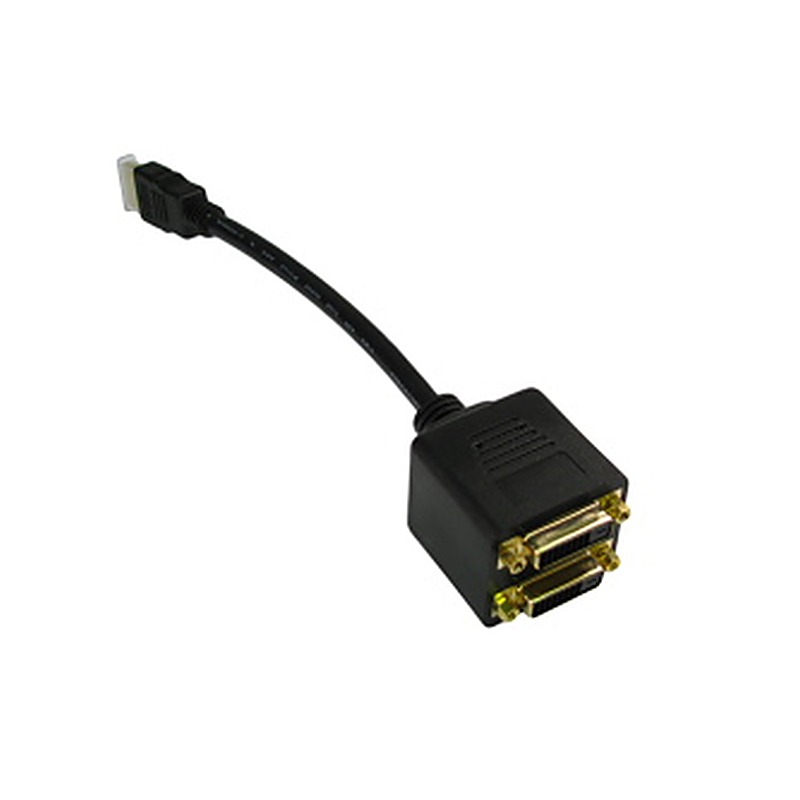
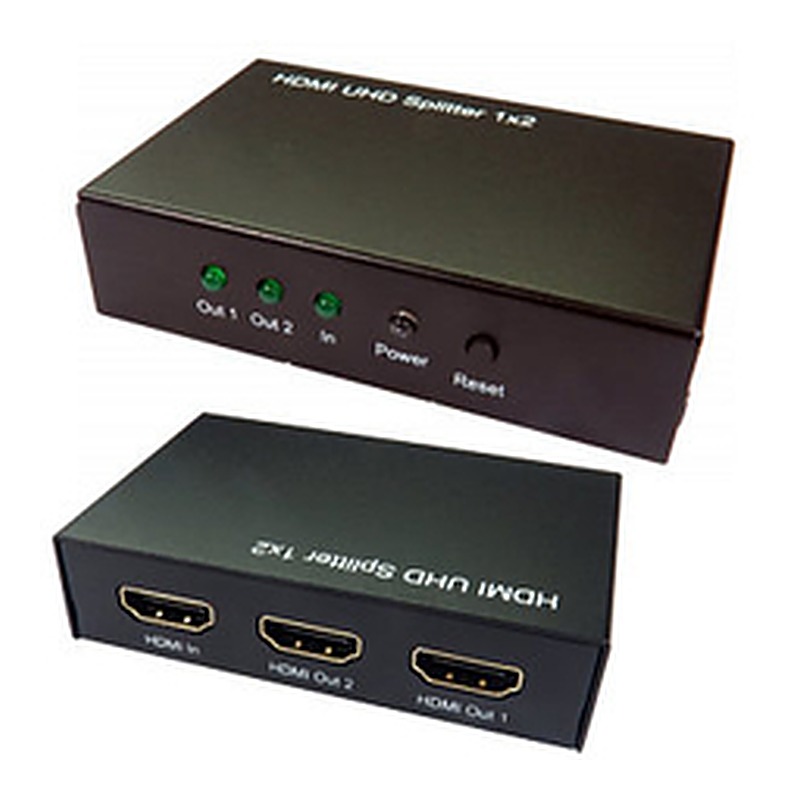
A splitter takes one HDMI source, such as a Sky box, streaming box, laptop or media player, and sends the same picture and sound to every output at once. Typical uses are TVs in several rooms, screens in pubs, shops and receptions, and duplicate displays in meeting rooms and classrooms.
- Outputs: 2, 4 or 8 way, such as our 2 way 4K 60Hz splitter, 4 way 4K 60Hz splitter with audio output or 8 way 4K splitter. A spare output makes it easy to add a screen later.
- 4K and HDCP 2.2: for 4K HDR from Sky Q, Netflix, Prime Video and similar, choose an HDMI 2.0 splitter with HDCP 2.2, or protected 4K content may not show, or may drop to HD.
- 8K and 4K 120Hz: choose an 8K splitter, such as our 1 x 2 or 1 x 4 8K 60Hz splitters.
- Mixed screens: every output shows the same picture, so many splitters send a resolution all the connected screens can display. One older HD TV can hold the others back to 1080p; check the product details, or give the older screen its own splitter.
- Powered, not passive: splitters have their own power supply. A passive HDMI splitter cable is only for very short runs; for screens more than a couple of metres away, use a powered splitter.
HDMI switches and matrix switches
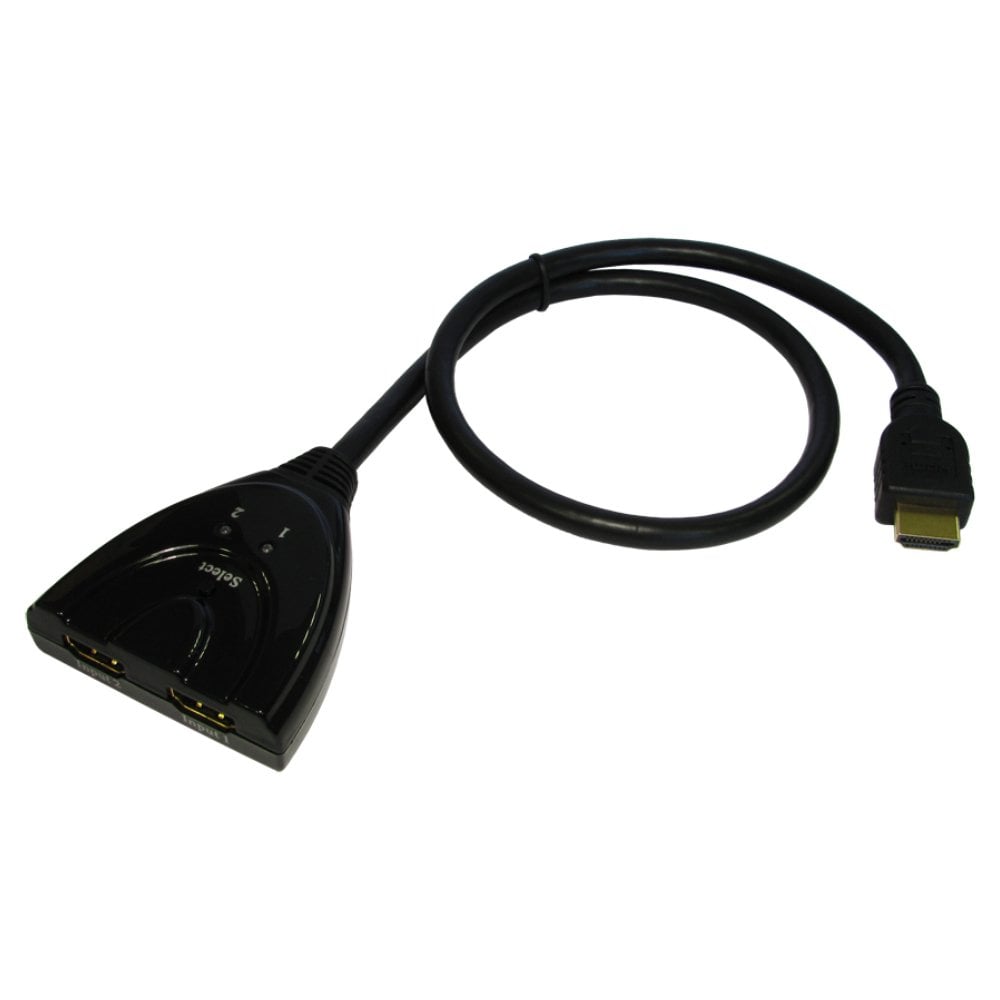
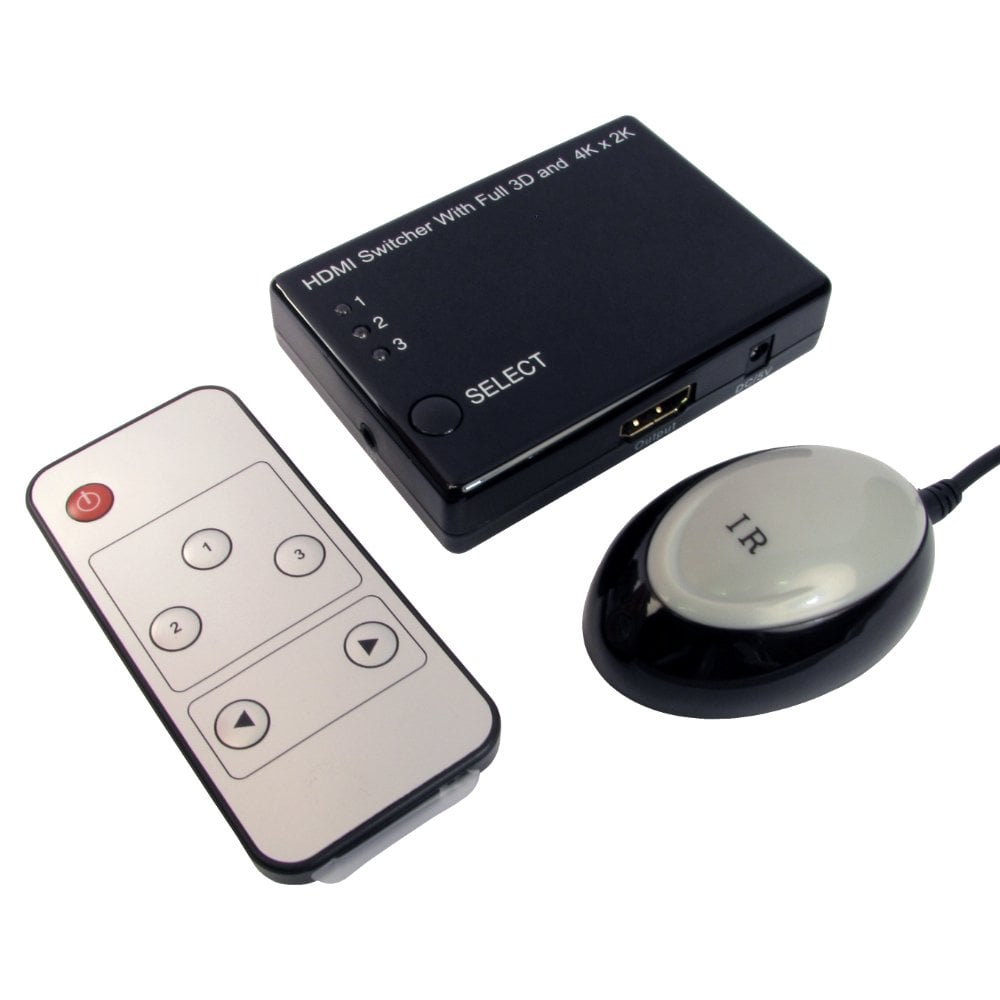
A switch connects several sources, for example a games console, a Sky box and a streaming stick, to one HDMI input on a TV or monitor, and you choose which one you see. It is the answer when the TV has run out of HDMI sockets, or when the only HDMI 2.1 input is needed for more than one console.
- Automatic or manual: many switches change to whichever source was turned on last, and also have a button or remote to choose manually, such as our 2 way auto switch with attached cable.
- Bi-directional switches work either way round: two sources to one screen, or one source to either of two screens, one at a time. Our 2 port 4K and 2 port 8K bi-directional switches work this way. To show one source on two screens at the same time, use a splitter instead.
- Speed: match the switch to your equipment: 4K 60Hz for most TVs and boxes, or an 8K switch such as our 8K 60Hz 4 x 1 switch for 4K 120Hz gaming and 8K.
- Matrix switches combine both: any of several sources can go to any of several screens, each screen showing its own choice.
HDMI over Ethernet extenders
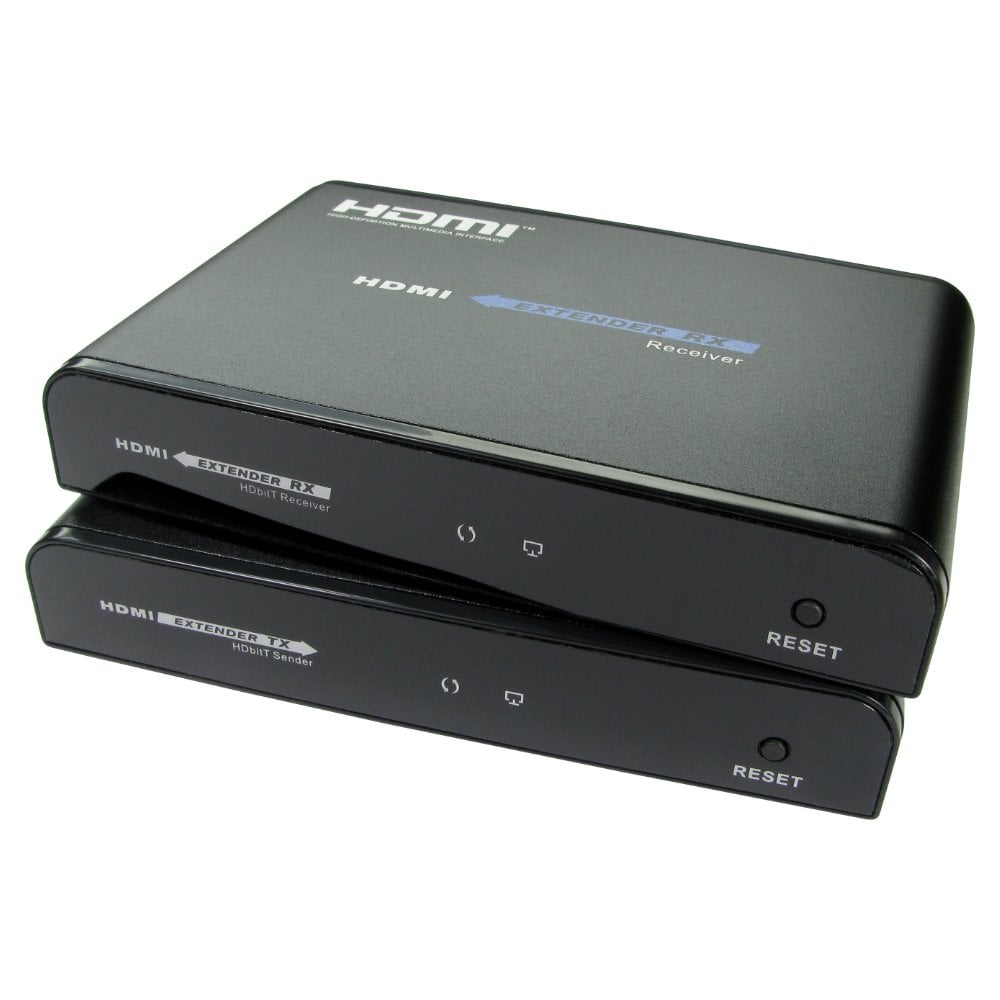
An extender kit has a sender at the source and a receiver at the screen, joined by a single network cable (Cat5e, Cat6 or better). It is the usual way to get HDMI to a screen in another room, a projector in a hall, or a display across a shop or office, and the network cable is cheap, thin and easy to run through walls.
- Distance and resolution depend on the kit: for example the 1080p 120m kit with IR, the 70m HDMI 2.0 kit carries 4K at 60Hz with HDR, and the 120m 4K kit carries 4K at 30Hz or 1080p at 60Hz. Distances are usually longest on Cat6.
- IR control: kits with IR let you point the source's remote at the receiver, in the other room, and still change channel.
- The cable: run one continuous network cable from sender to receiver, not through a network switch, unless the kit says it works over a network. Solid core installation cable gives the best distance; see our guide patch lead or bulk cable reel?
- Over a network: the HDMI extender over LAN is different: it sends a PC's desktop across an existing computer network to an HDMI screen, using software on the PC, up to 1920 x 1080.
- Most kits need power at both ends; check the product details.
Repeaters and boosters
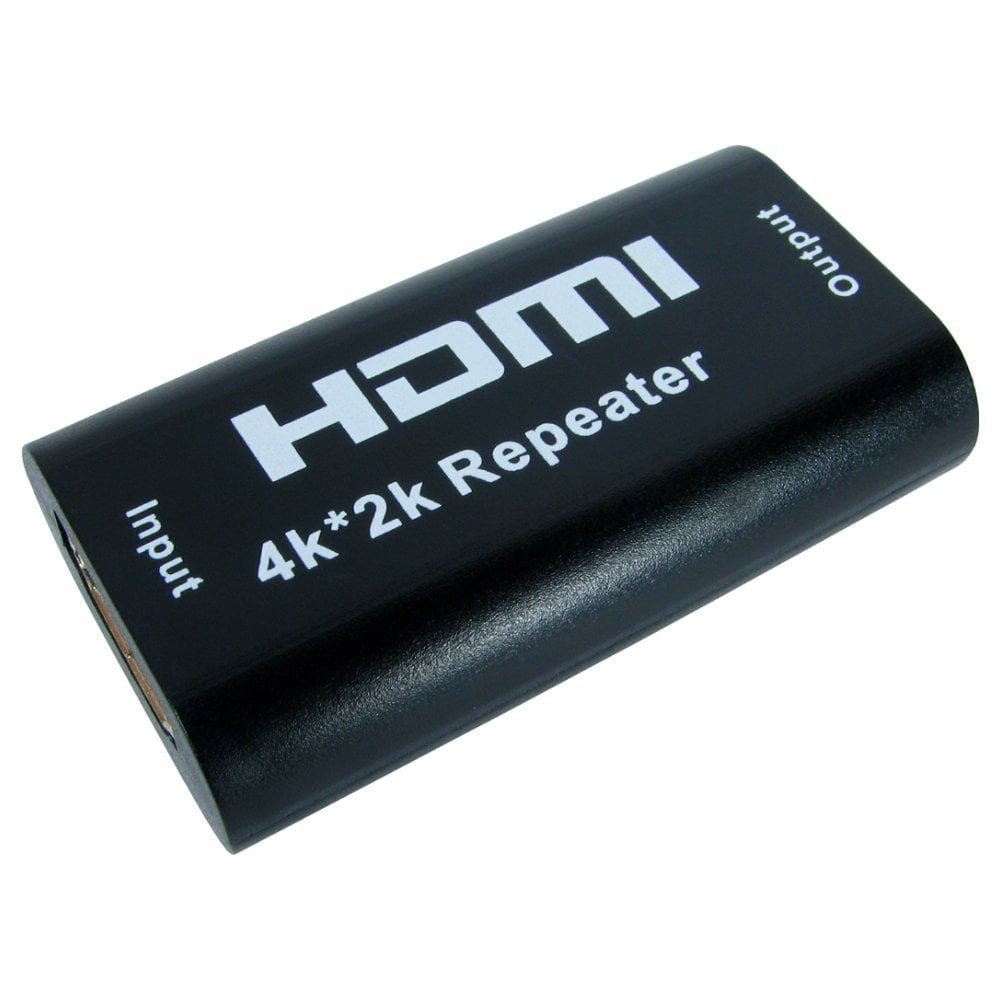
A repeater or booster sits in line between two HDMI cables and regenerates the signal, so a screen at the end of a long cable gets a stable picture. Our HDMI 2.0 repeater supports 4K at 60Hz, and the 4K inline booster extends a run to around 35m in total. For a single long cable, active and fibre optic HDMI cables are another option; see our HDMI cable guide.
Troubleshooting
- No picture on one screen: check the splitter or extender has power, and try that screen on its own; a screen that cannot show the source's resolution may stay blank.
- 4K film or streaming app will not play: every part of the chain must support HDCP 2.2, including the splitter or switch and the TV input.
- Picture drops out or sparkles: the cables may not be fast enough for 4K; use Premium High Speed or Ultra High Speed cables, keep them short, and check the distance limits for extenders.
- Switch keeps changing input: turn off automatic switching, or turn off devices you are not using.
Not sure which you need? Call us on 0207 100 6326 and we will help you choose.
Popular splitters, switches and extenders