How to Connect a Laptop to a TV or Monitor
Connecting a laptop or PC to a TV, monitor or projector comes down to two things: the video port on the computer and the input on the screen. When they match, all you need is the right cable. When they do not, an adapter or converter bridges the gap, but some only work in one direction. This guide helps you identify your ports and find the cable that works first time.
Step 1: identify the ports
| Port | What it looks like | Found on | Sound? |
|---|---|---|---|
| HDMI | Flat, about 14mm wide, with two angled corners | TVs, monitors, projectors, many laptops and PCs | Yes |
| Mini and Micro HDMI | Smaller versions of HDMI | Small laptops, tablets, cameras, Raspberry Pi | Yes |
| USB C | Small rounded oval, fits either way up | Most current laptops, MacBooks, tablets, some phones and monitors | Yes, if the port supports video |
| DisplayPort | Like HDMI but with one angled corner | Desktop PCs, graphics cards, business monitors | Yes |
| Mini DisplayPort | Small, with two angled corners, often with a DisplayPort or Thunderbolt symbol | Older MacBooks, Surface devices, some business laptops | Yes |
| DVI | Wide socket, usually white, with rows of pin holes and two screw fixings | Older PCs, graphics cards and monitors | No (normally) |
| VGA | Blue D shaped socket with 15 pin holes in three rows | Older laptops, PCs, monitors and many projectors | No |
A USB C port only sends video if it supports DisplayPort Alt Mode or Thunderbolt. Look for a DisplayPort or lightning bolt symbol next to the port, or check the laptop's specifications for "video out". A port that only charges or transfers data will not show a picture with any cable.
Most TVs only have HDMI inputs. Monitors often have HDMI and DisplayPort, and older ones DVI or VGA. Projectors usually have HDMI, and many still have VGA.
Step 2: what to buy
| Laptop or PC port | Screen input | What you need |
|---|---|---|
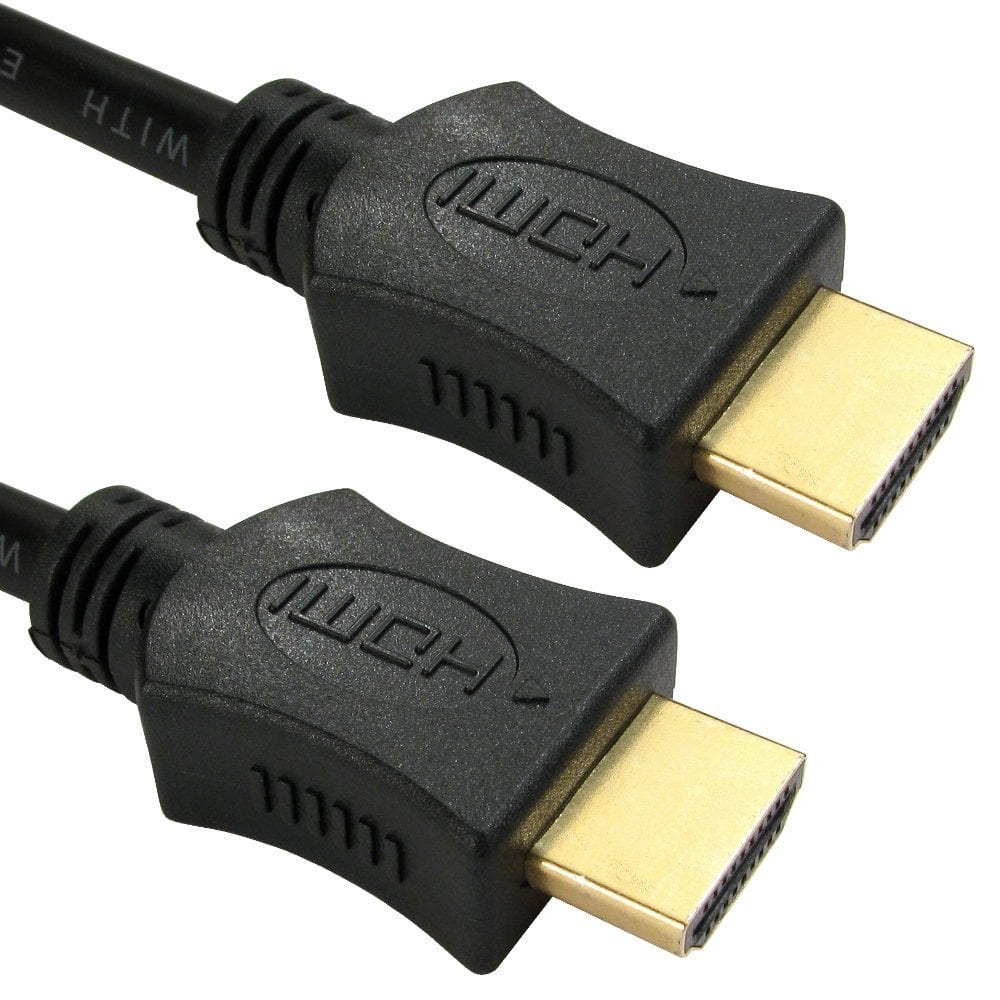
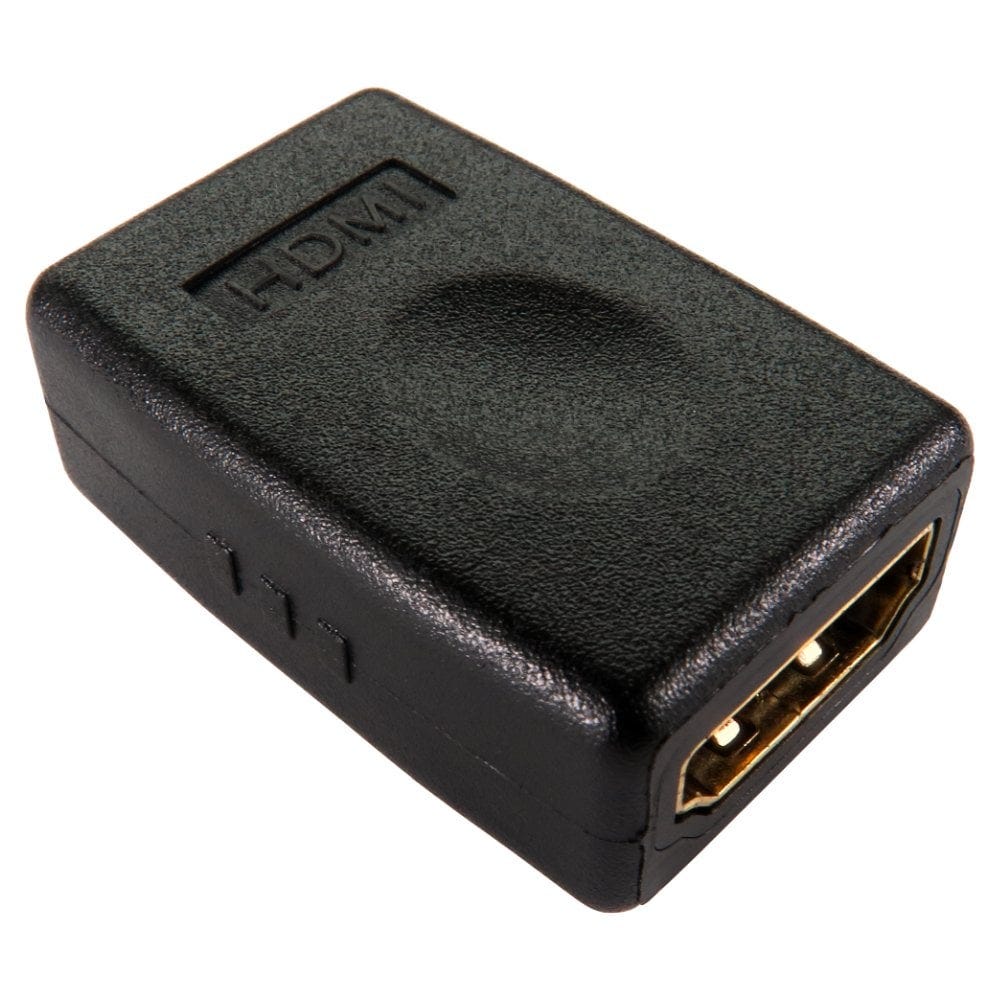
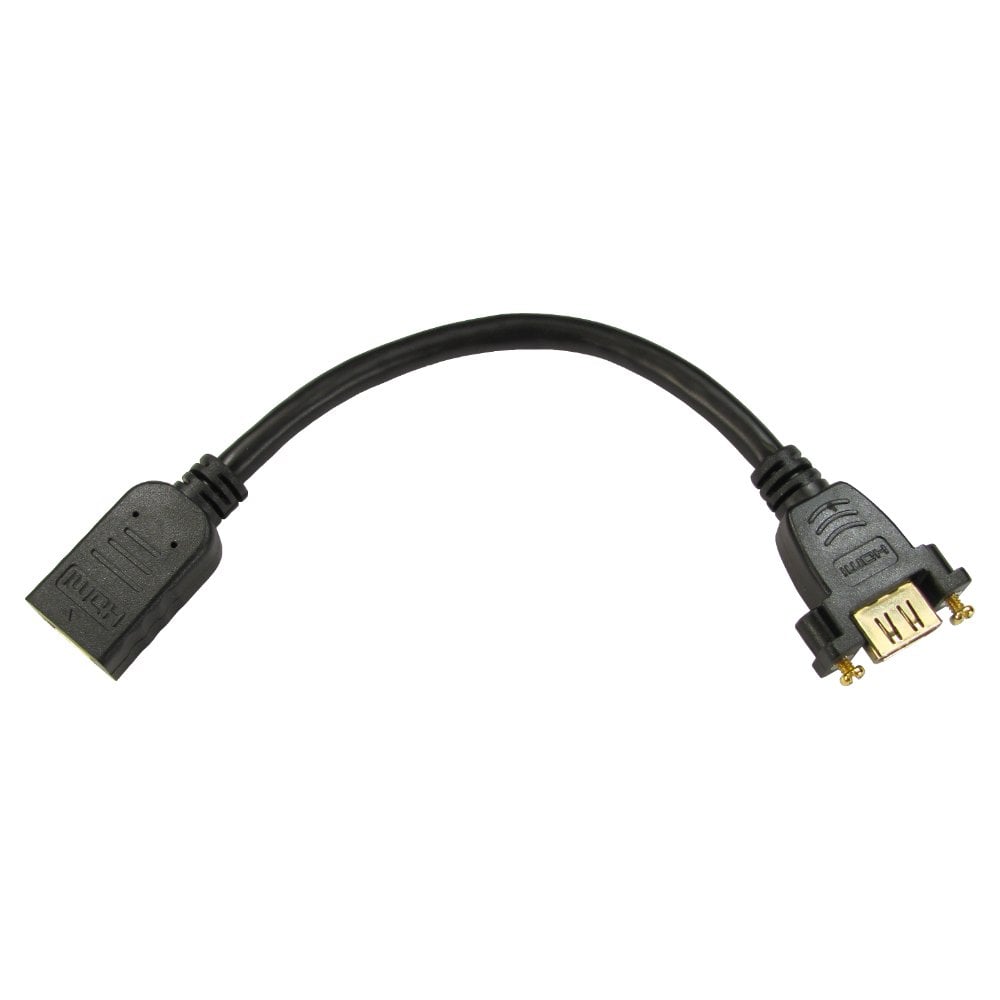
| HDMI | HDMI | HDMI cable (218, from £1.58), or HDMI 2.1 certified (16, from £8.16) for 4K 120Hz or 8K |
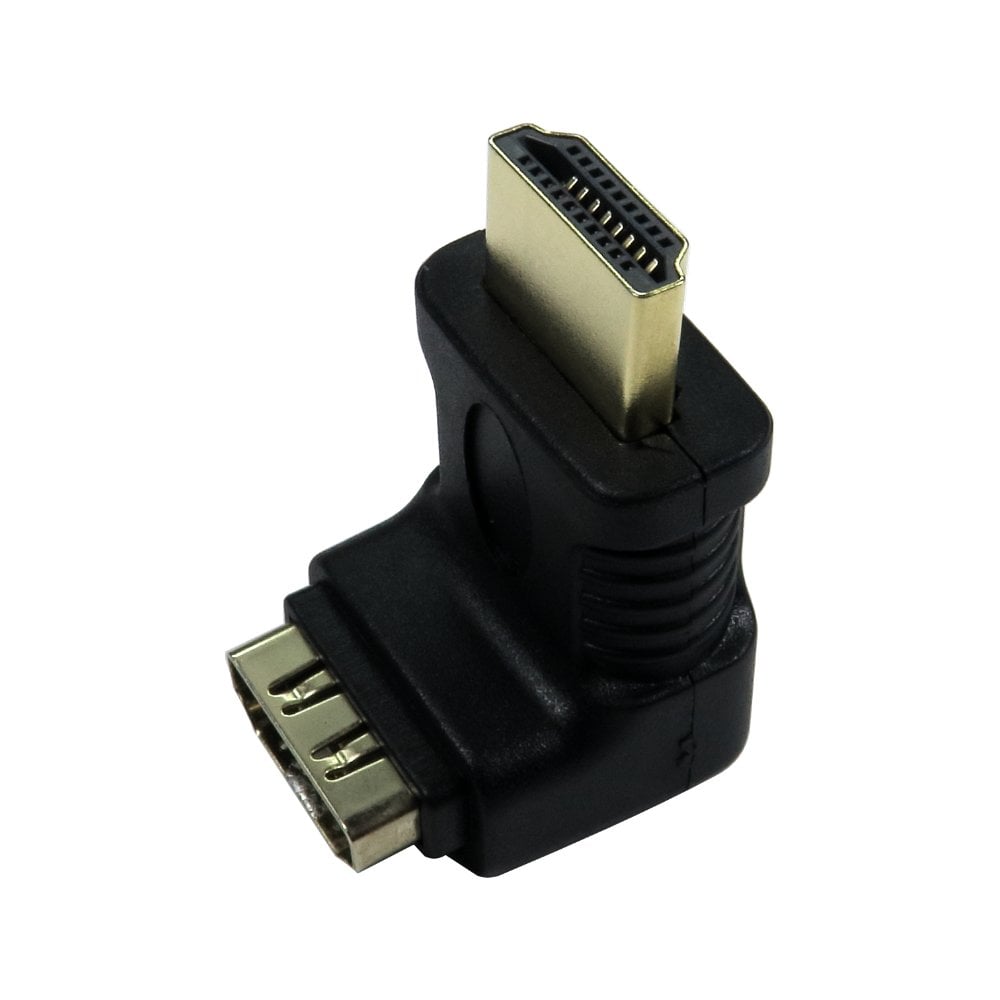
| Mini or Micro HDMI | HDMI | Mini HDMI cable (10, from £3.02) or Micro HDMI cable (12, from £3.91), or an HDMI adapter |
| USB C | HDMI | USB C to HDMI cable or adapter (27, from £13.82) |
| USB C | DisplayPort | USB C to DisplayPort (17, from £8.42) |
| USB C | USB C monitor | A USB C to USB C cable (48, from £2.26) rated for video (USB 3.1 or later, USB4 or Thunderbolt); charge only cables will not carry a picture |
| USB C | DVI or VGA | USB C to DVI (10, from £12.26) or USB C to VGA (11, from £16.46) |
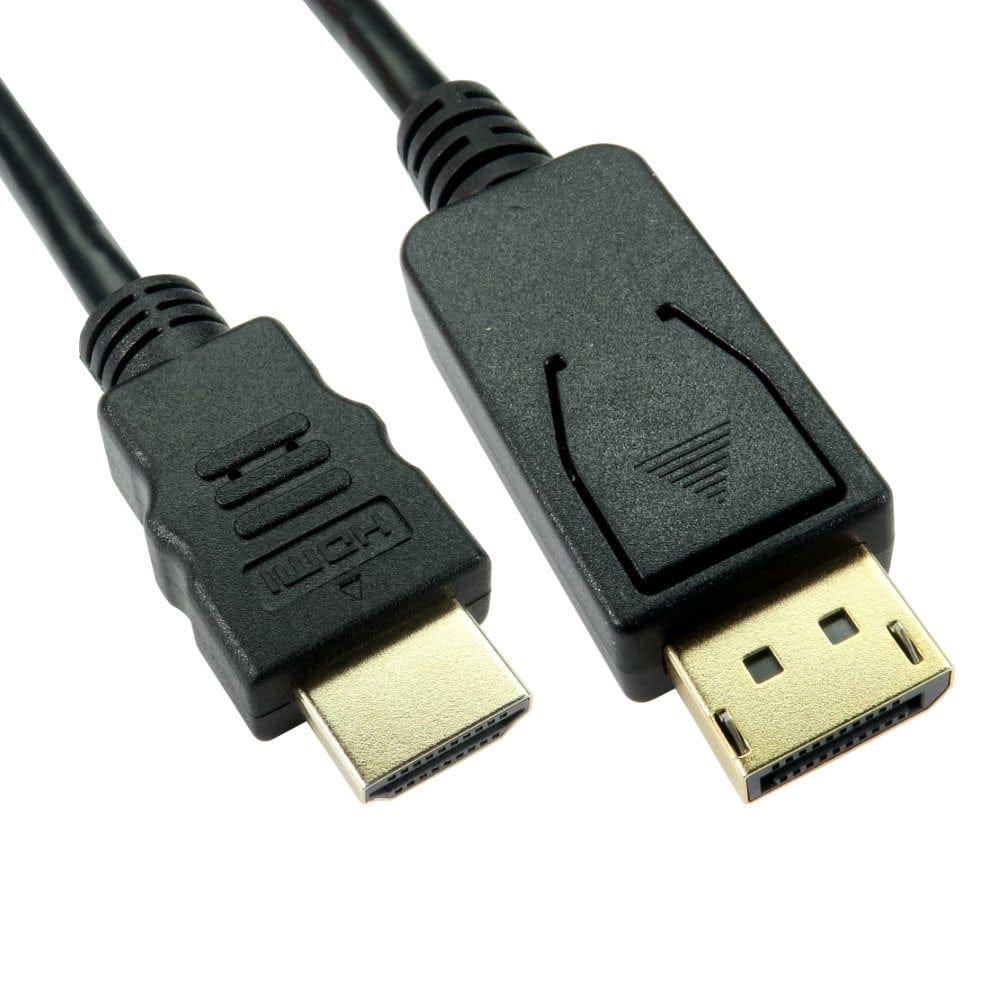
| DisplayPort | HDMI | DisplayPort to HDMI cable (17, from £6.07) or DisplayPort adapter |
| DisplayPort | DisplayPort | DisplayPort cable (62, from £3.74) |
| DisplayPort | DVI or VGA | DisplayPort to DVI (12, from £4.00) or DisplayPort to VGA (7, from £9.19) |
| Mini DisplayPort | HDMI, DisplayPort, DVI or VGA | Mini DP to HDMI (8, from £5.59), Mini DP to DisplayPort (14, from £5.06), Mini DP to DVI or Mini DP to VGA |
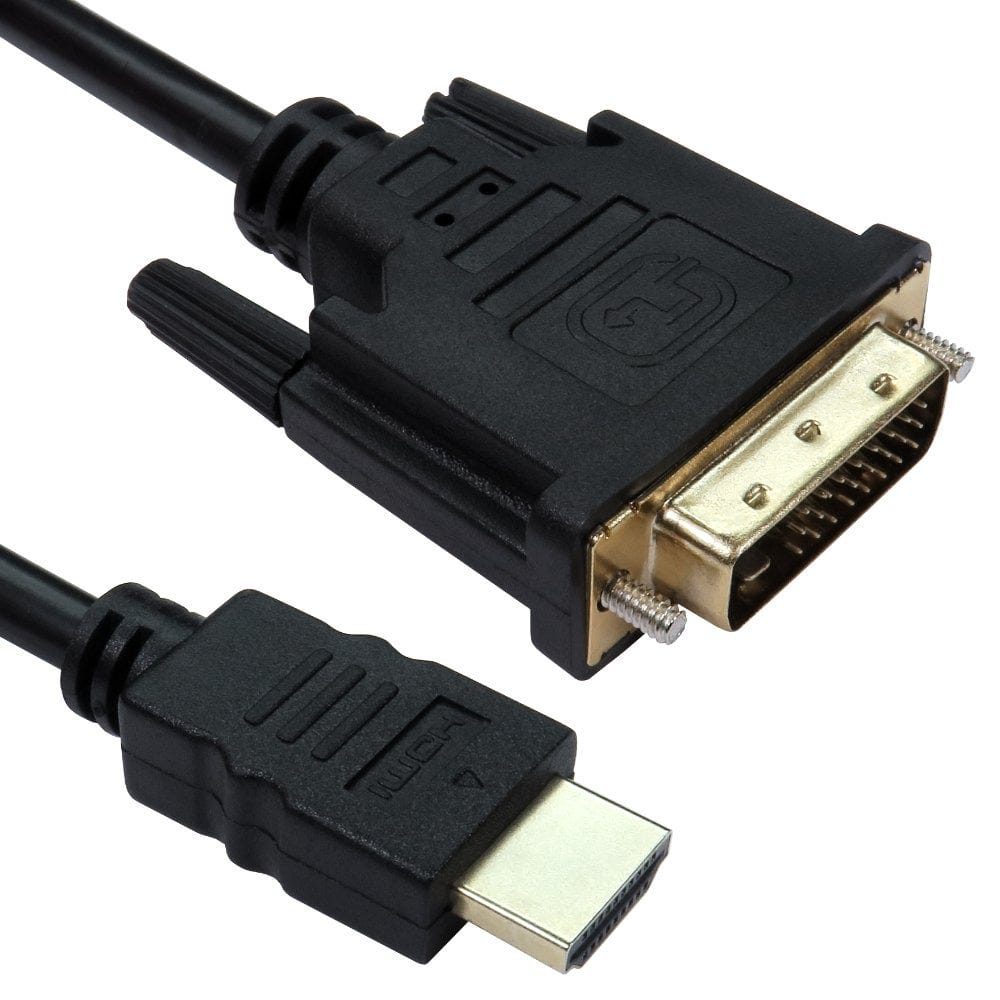
| HDMI | DVI | HDMI to DVI cable (21, from £2.88) or a DVI adapter |
| DVI | HDMI | The same HDMI to DVI cable: it works in both directions |
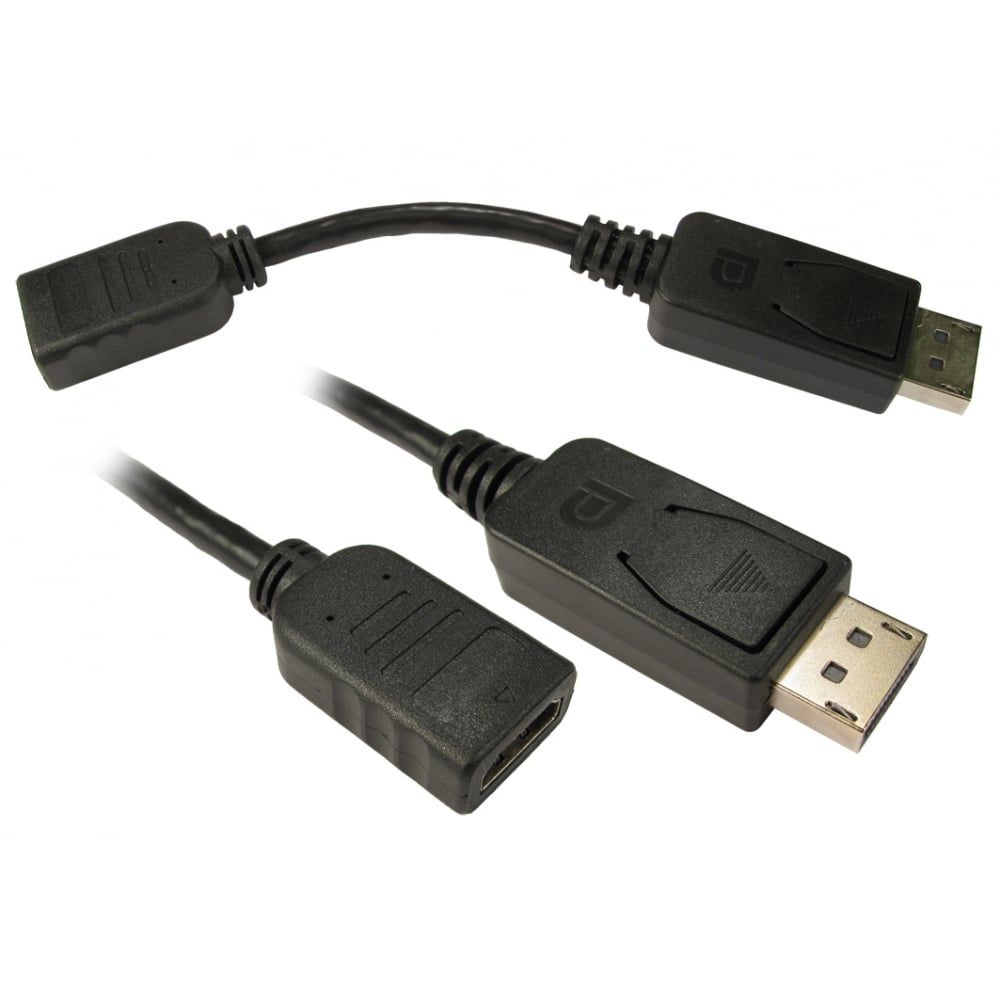
| HDMI | DisplayPort | An active converter such as our HDMI to DisplayPort adapter (a DisplayPort to HDMI cable will not work this way round) |
| HDMI | VGA | An HDMI to VGA converter (17, from £5.95), many with a 3.5mm audio output |
| VGA | VGA | VGA cable (31, from £2.86) |
| USB A only | HDMI or VGA | A USB to HDMI display adapter (2, from £61.81) or USB to VGA adapter (2, from £50.26) (adds an extra screen; see below) |
Numbers in brackets show how many products we have in each range and the lowest price in stock.
Adapters that only work one way
Some connections convert the signal, and only work in one direction. Buying the wrong way round is the most common reason a new cable shows no picture:
- DisplayPort to HDMI cables and adapters work from a DisplayPort computer to an HDMI screen. For an HDMI computer and a DisplayPort monitor you need a powered HDMI to DisplayPort converter.
- USB C to HDMI only sends a picture from a USB C laptop, tablet or phone to an HDMI screen. Showing an HDMI source, such as a games console, on a USB C monitor needs a dedicated HDMI to USB C converter, and the monitor must accept video on its USB C port.
- HDMI to VGA converters turn the digital HDMI signal into analogue VGA. Going from a VGA laptop to an HDMI TV needs a different, powered VGA to HDMI converter. We do not currently stock one for standard VGA; for laptops with a Mini VGA port, use our Mini VGA to HDMI converter.
- HDMI and DVI carry the same digital picture, so an HDMI to DVI cable works in both directions without a converter.
USB to HDMI and USB to VGA display adapters work differently again: they add a screen through a USB port using driver software on the computer. They are handy for adding a second or third monitor to a laptop, but are best for office work rather than games or fast moving video.
Getting sound through the TV
HDMI, DisplayPort and USB C carry sound as well as the picture, so a TV or monitor with speakers will play it. If you hear sound from the laptop instead, choose the TV or monitor as the playback device in the computer's sound settings.
DVI and VGA carry the picture only. With an HDMI to DVI cable, or a VGA connection, run a separate audio cable from the laptop's headphone socket to the screen or speakers. Many HDMI to VGA converters have a 3.5mm audio socket for this.
4K, 120Hz and 8K
| Connection | Up to |
|---|---|
| HDMI 1.4 | 4K at 30Hz |
| HDMI 2.0 | 4K at 60Hz |
| HDMI 2.1 | 4K at 120Hz, 8K at 60Hz |
| DisplayPort 1.2 | 4K at 60Hz |
| DisplayPort 1.4 | 4K at 120Hz, and 8K at 60Hz with compression (DSC) |
| DVI single link | 1920 x 1200 at 60Hz |
| DVI dual link | 2560 x 1600 at 60Hz |
| VGA | Full HD, though analogue, so less sharp |
The laptop, the cable or adapter and the screen all have to support a mode for you to get it. For everyday work and streaming, 4K at 60Hz is plenty; for gaming at 120Hz or 8K, check that both ends support HDMI 2.1 or DisplayPort 1.4 and use a cable rated for it. For DVI, choose dual link DVI for screens above 1920 x 1200.
Step 3: choose the right settings
- Connect the cable with both devices switched on, and select the matching input on the TV or monitor (for example HDMI 2) with its remote or buttons.
- On Windows, press the Windows key and P together and choose Duplicate (the same picture on both) or Extend (a second desktop). On a Mac, open System Settings, then Displays.
- If the picture is cut off at the edges of a TV, look for a setting called Just Scan, Screen Fit or 1:1 pixel mapping on the TV, or turn off overscan.
No picture? Check these
- Is the TV or monitor set to the input the cable is plugged into?
- Does your laptop's USB C port support video? Try another USB C port; often only one or two do.
- Is the adapter the right way round? See one way adapters above.
- Is the laptop set to a resolution or refresh rate the screen can show? Try a lower one.
- Does a powered converter have its USB power lead plugged in?
- Some streaming apps will not play over analogue VGA, or through some converters, because of copy protection (HDCP). A direct digital connection such as HDMI avoids this.
Still stuck? Call us on 0207 100 6326 and we will help you find the right cable.
Popular display cables and adapters