DisplayPort Cable Guide
DisplayPort is the main video connection on PC graphics cards and most computer monitors, and the one gamers use for high refresh rates. Cables look the same whatever they can do, so this guide explains the versions, which cable your monitor needs, and how to connect DisplayPort to HDMI, DVI, VGA and USB C.
DisplayPort versions
| Version | Bandwidth | Typical use |
|---|---|---|
| DisplayPort 1.2 | 21.6Gbps | 4K at 60Hz, 1440p at 144Hz, two or three monitors by daisy chain |
| DisplayPort 1.4 (HBR3) | 32.4Gbps | 4K at 120Hz, 1440p at 240Hz, HDR, 8K at 60Hz with compression (DSC) |
| DisplayPort 2.1, DP40 cable | Up to 40Gbps (UHBR10) | The newest graphics cards and monitors: 4K at 165Hz and above without compression |
| DisplayPort 2.1, DP80 cable | Up to 80Gbps (UHBR20) | The fastest DisplayPort 2.1 equipment: 4K at 240Hz and 8K without compression |
The graphics card and the monitor decide which version is used; the cable just has to be fast enough. Every version works with the others, at the speed of the slowest part, so a newer cable is always safe with older equipment.
Which cable does your monitor need?
| Monitor | Cable |
|---|---|
| 1080p or 1440p office monitor | Any DisplayPort cable |
| 1440p gaming at 144Hz, or 4K at 60Hz | DisplayPort 1.2 or above |
| 4K at 120Hz or 144Hz, HDR gaming | A certified DisplayPort 1.4 cable, such as our 1m or 2m HBR3 cables |
| DisplayPort 2.1 monitor and graphics card | A DP40 cable such as our 2m DP40, or DP80 for the highest modes, such as our 1m and 2m VESA certified DP80 cables |
Certified cables have been tested by VESA, the body behind DisplayPort, at their rated speed. If a high refresh monitor flickers, goes blank or will only run at a lower setting, the cable is the first thing to try changing.
Full size, Mini DisplayPort and USB C
| Plug | Shape | Found on |
|---|---|---|
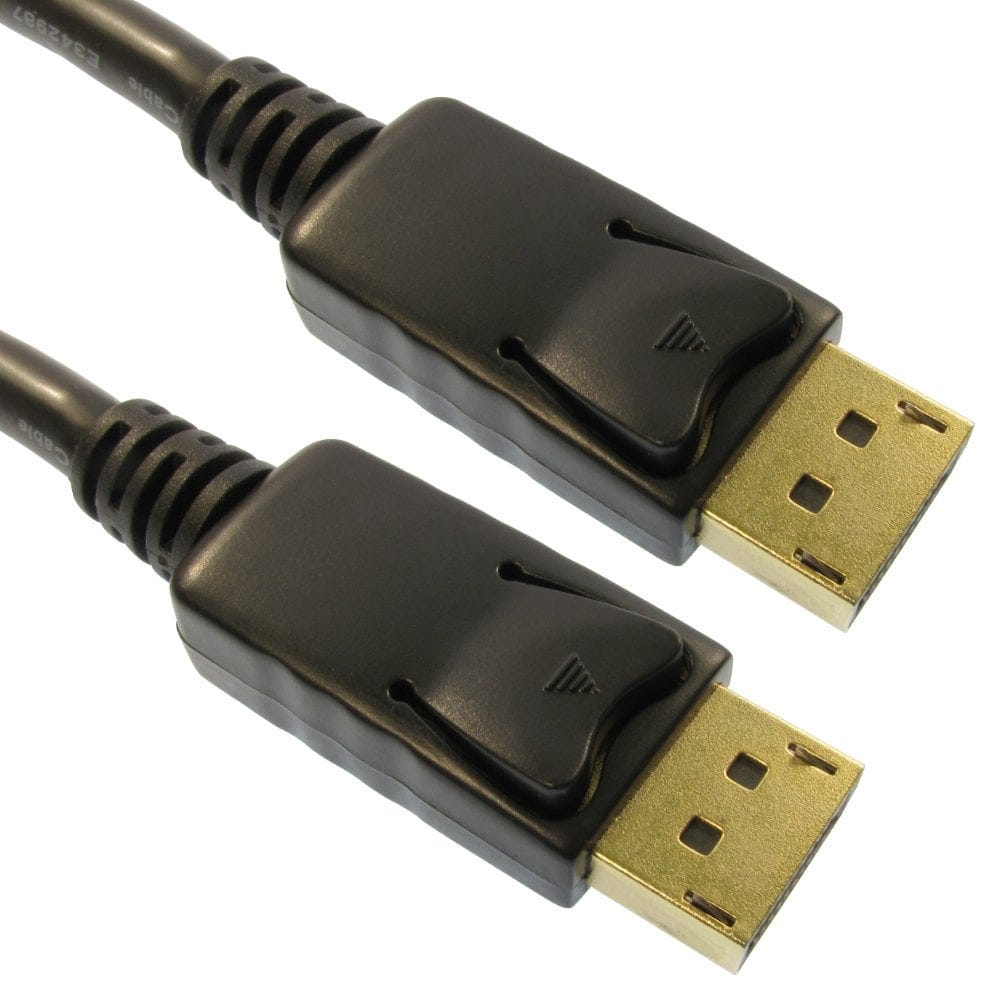
| DisplayPort | Graphics cards, desktop PCs, monitors. One corner is cut off so it only fits one way; most have a latch | |
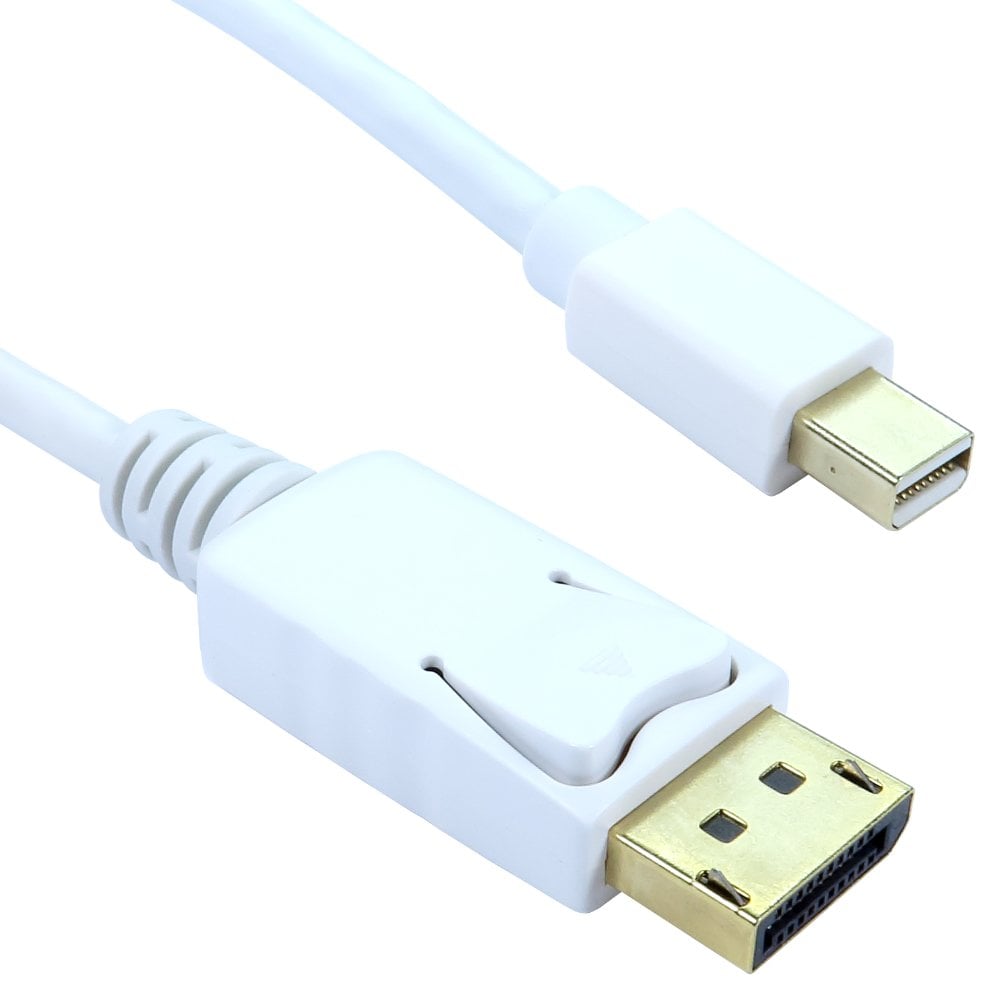
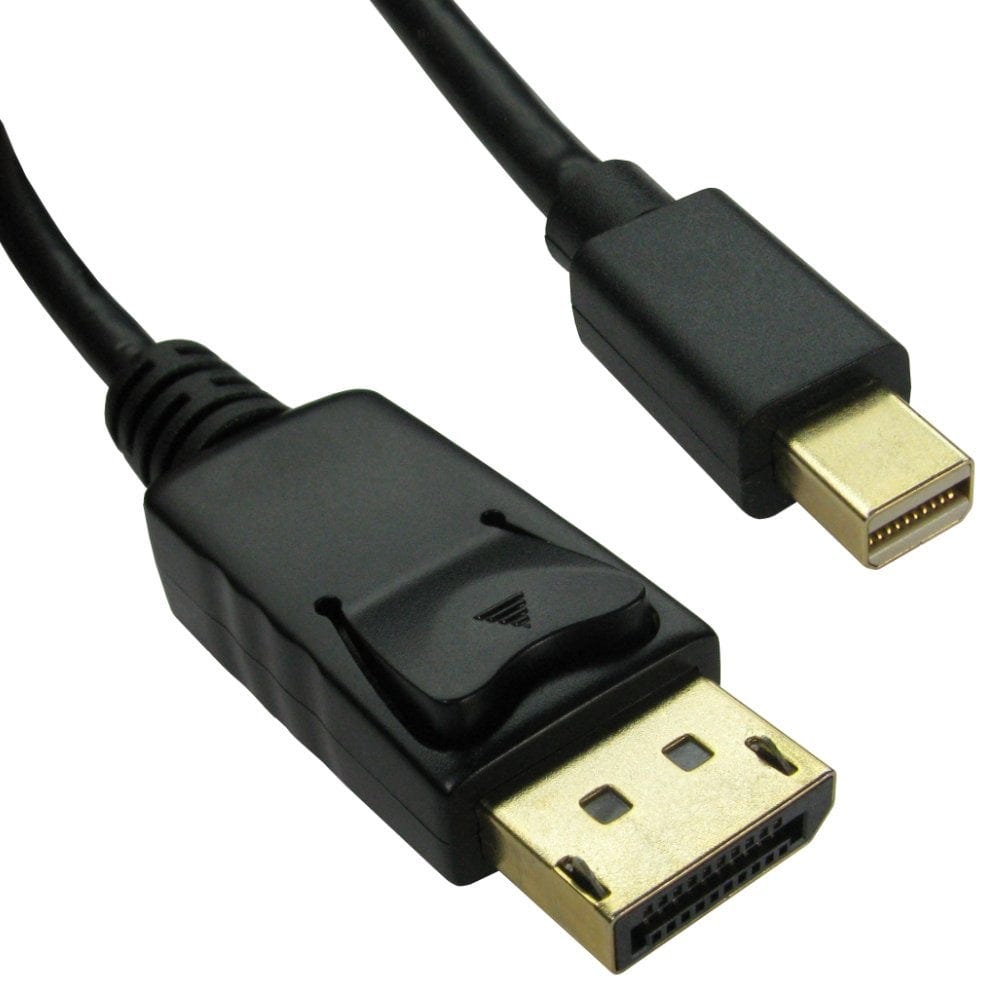
| Mini DisplayPort | Older MacBooks and iMacs, Surface devices, some graphics cards and laptops. Thunderbolt 1 and 2 ports have the same shape and take Mini DisplayPort cables | |
| USB C | Newer laptops, tablets and phones, when the port supports DisplayPort Alt Mode |
Drawings are simplified views of the plug end. Mini DisplayPort carries the same signal as full size, so a Mini DisplayPort to DisplayPort cable needs no converter.
- Latching plugs: most full size DisplayPort plugs lock in place. Press the button on the plug before pulling it out, or the socket can be damaged.
- USB C to DisplayPort: the laptop's USB C port must support DisplayPort Alt Mode (Thunderbolt ports always do; otherwise look for a DisplayPort logo by the port or check the laptop's specification); a USB C to DisplayPort cable then gives up to 4K at 60Hz. Most work from the laptop to the monitor only; our bi-directional cable also connects a DisplayPort graphics card to a monitor with a USB C input. For more, see our USB4 and Thunderbolt guide.
Long runs, extensions and fibre
- The faster the signal, the shorter a copper cable can be. For 4K at high refresh rates, keep to 2m or 3m. Long copper cables, up to 15m, are best at 1080p and 1440p.
- For 4K or 8K over a longer distance, use a fibre optic (active optical) DisplayPort cable, such as our 10m or 15m cables. We stock them from 5m to 50m. They are directional: the end marked source goes to the computer and the end marked display to the monitor.
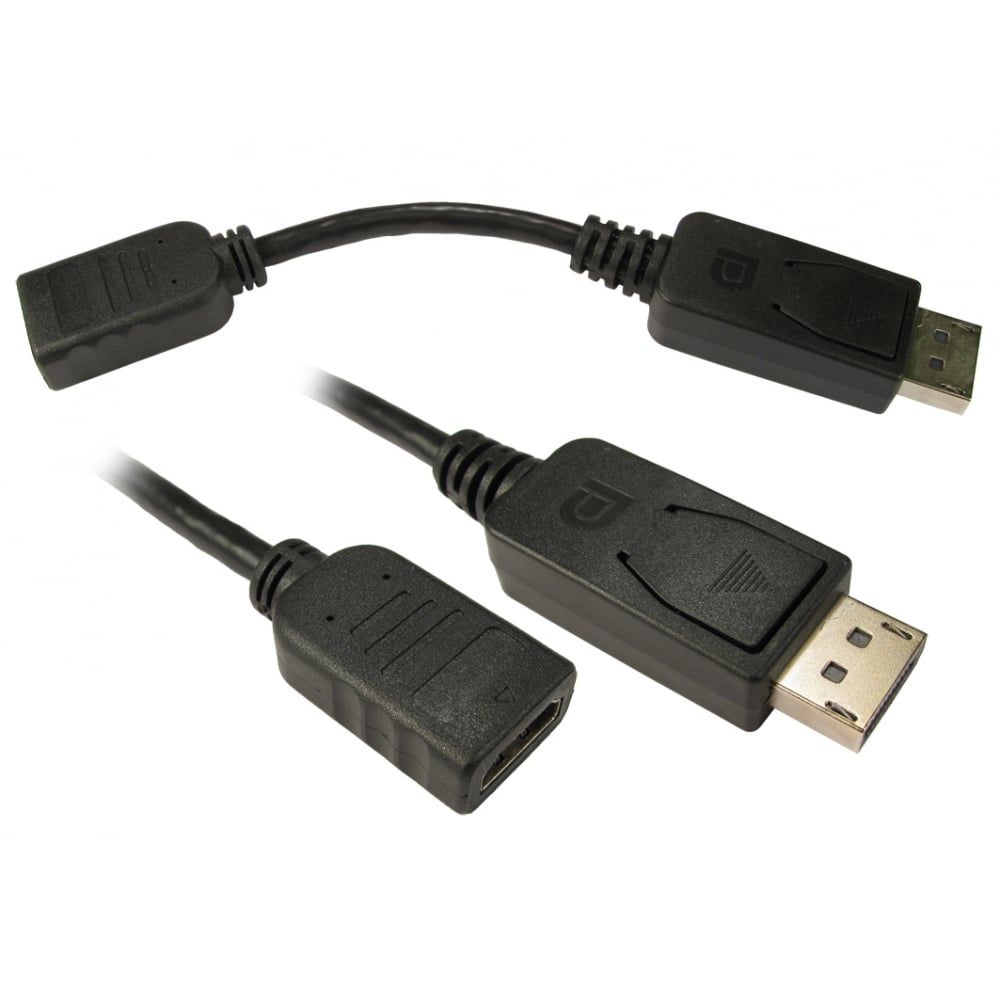
- A DisplayPort extension cable (plug to socket) adds reach to an existing cable, but at high resolutions one longer cable is more reliable.
DisplayPort to HDMI, DVI and VGA
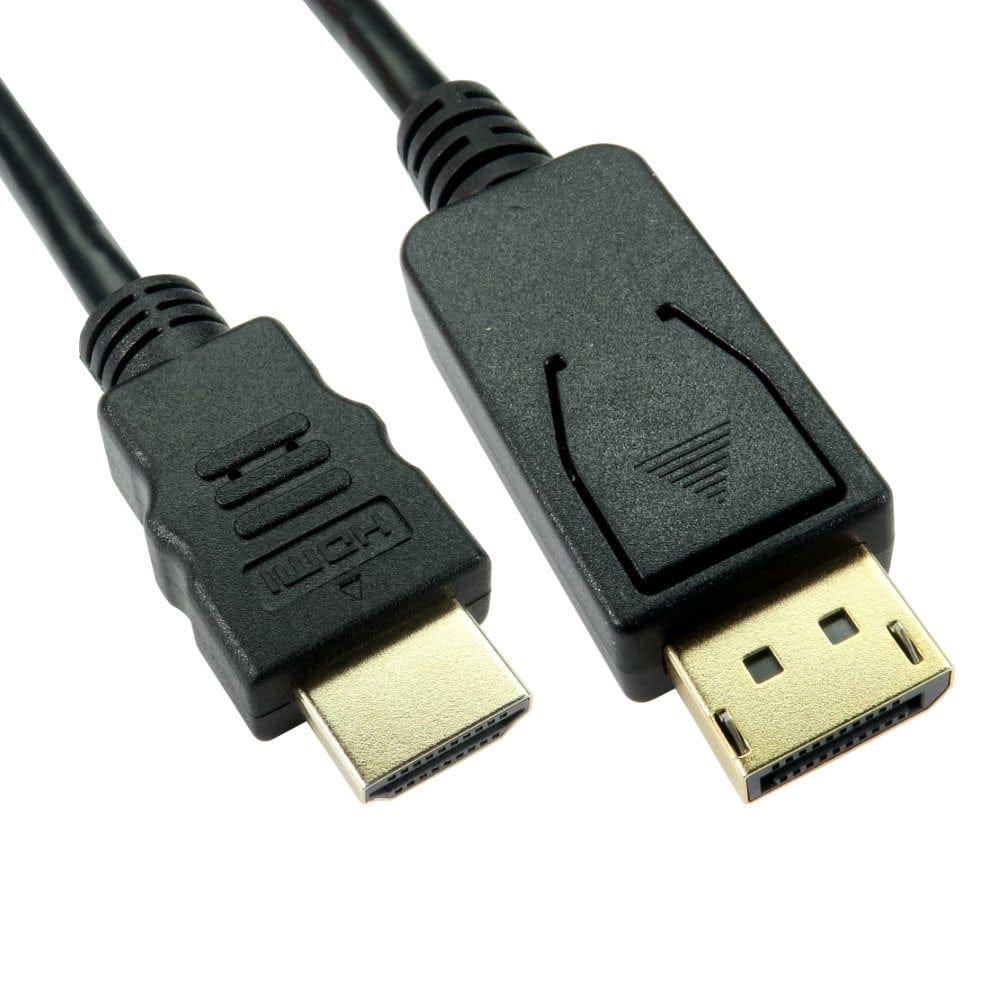
- DisplayPort to HDMI: works from the computer to the TV or monitor only. Most DisplayPort outputs can send an HDMI signal, so a simple cable or adapter such as our 1080p adapter is enough for a single screen. Choose an active one, such as our active 4K adapter, 2m active cable or active adapter on a lead, for several screens from one graphics card, or when a simple adapter gives no picture. For 4K at 60Hz, choose one listed as 4K 60Hz, such as our 4K 60Hz adapter.
- HDMI to DisplayPort (an HDMI computer to a DisplayPort monitor) needs a powered converter, such as our HDMI to DisplayPort adapter, which takes power from a USB port. A DisplayPort to HDMI cable will not work this way round.
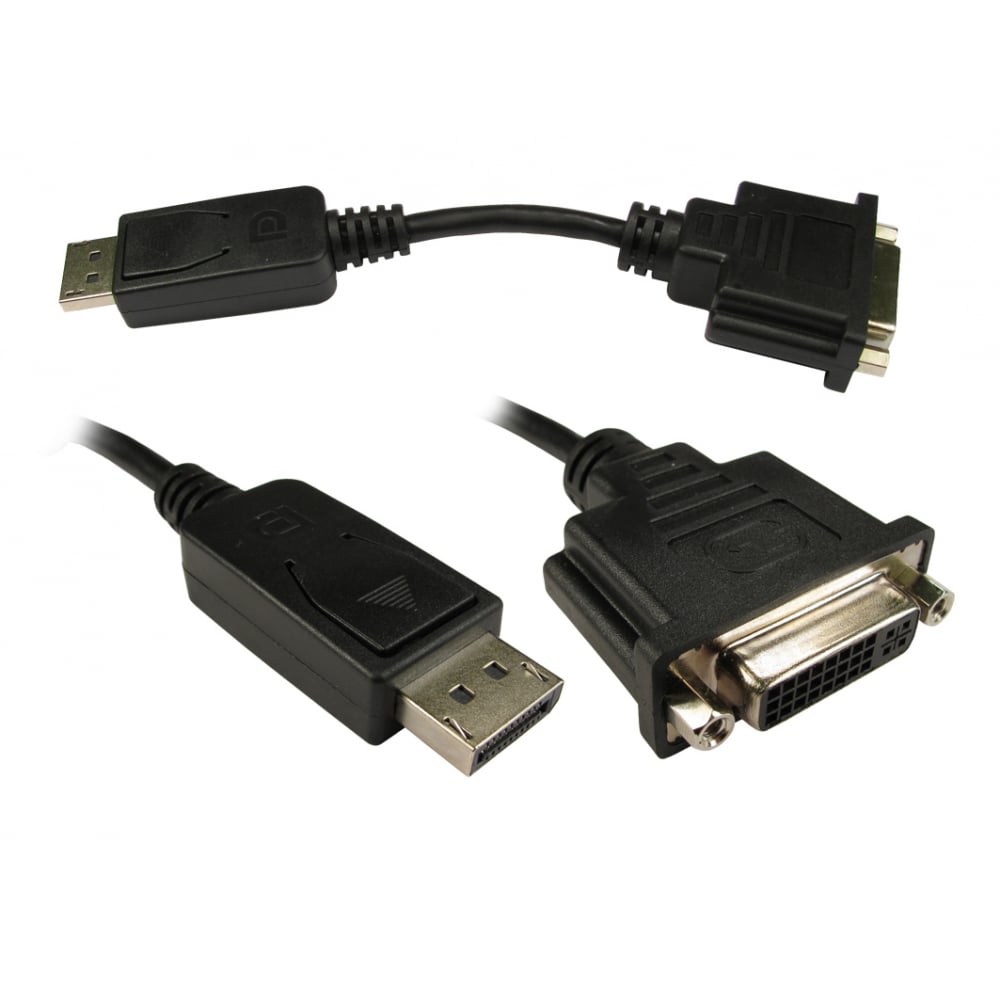
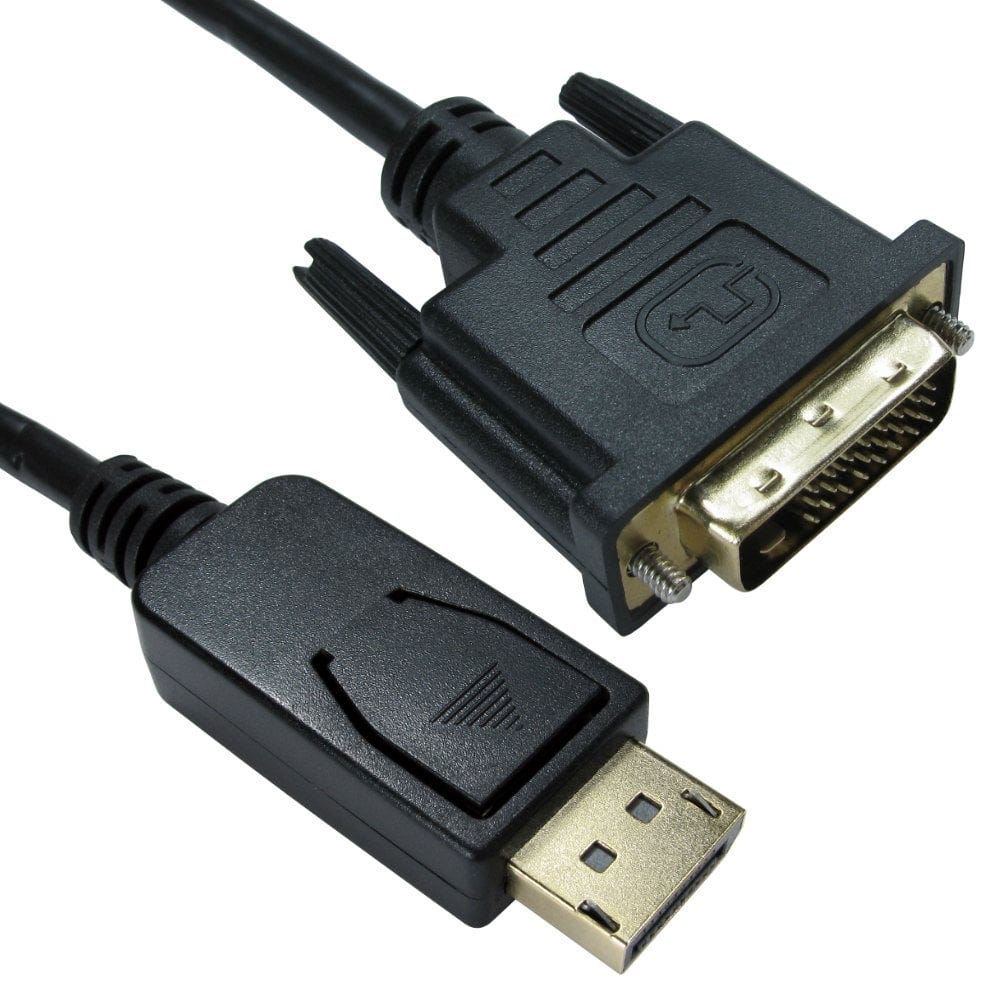
- DisplayPort to DVI: works from the computer to a DVI monitor. Most cables and adapters run at single link resolutions, up to 1920 x 1200; see our DVI cable guide.
- DisplayPort to VGA: the cable or adapter has a converter built in, because DisplayPort is digital and VGA is analogue. It works from the computer to a VGA monitor or projector only.
The same applies to Mini DisplayPort. For every other combination of computer and screen, see our guide how to connect a laptop to a TV or monitor.
Daisy chaining and MST hubs
DisplayPort 1.2 and above can run several monitors from one port using MST (multi-stream transport):
- Daisy chain: monitors with a DisplayPort output and MST support can be linked one to the next, each with a DisplayPort cable.
- MST hub: splits one DisplayPort output into separate screens, such as our MST hub with 2 x DisplayPort and HDMI, or from USB C, our USB C to dual DisplayPort MST adapter.
Most Windows PCs support MST. Mac computers do not: the screens show the same picture instead of separate desktops. The screens share the bandwidth of one port, so the more screens, the lower the highest resolution or refresh rate each can run.
Not sure which DisplayPort cable you need? Call us on 0207 100 6326 and we will help.
Popular DisplayPort cables and adapters