DVI Cable Types
DVI is the wide white video socket found on many monitors, graphics cards and older PCs. It comes in several versions that look alike but are wired differently, and choosing the wrong one can mean a plug that will not fit, or a monitor that will not run at its full resolution. This guide shows how to tell them apart and which cable or adapter you need.
DVI-D, DVI-I and DVI-A
| Type | Plug | Signal | How to spot it |
|---|---|---|---|
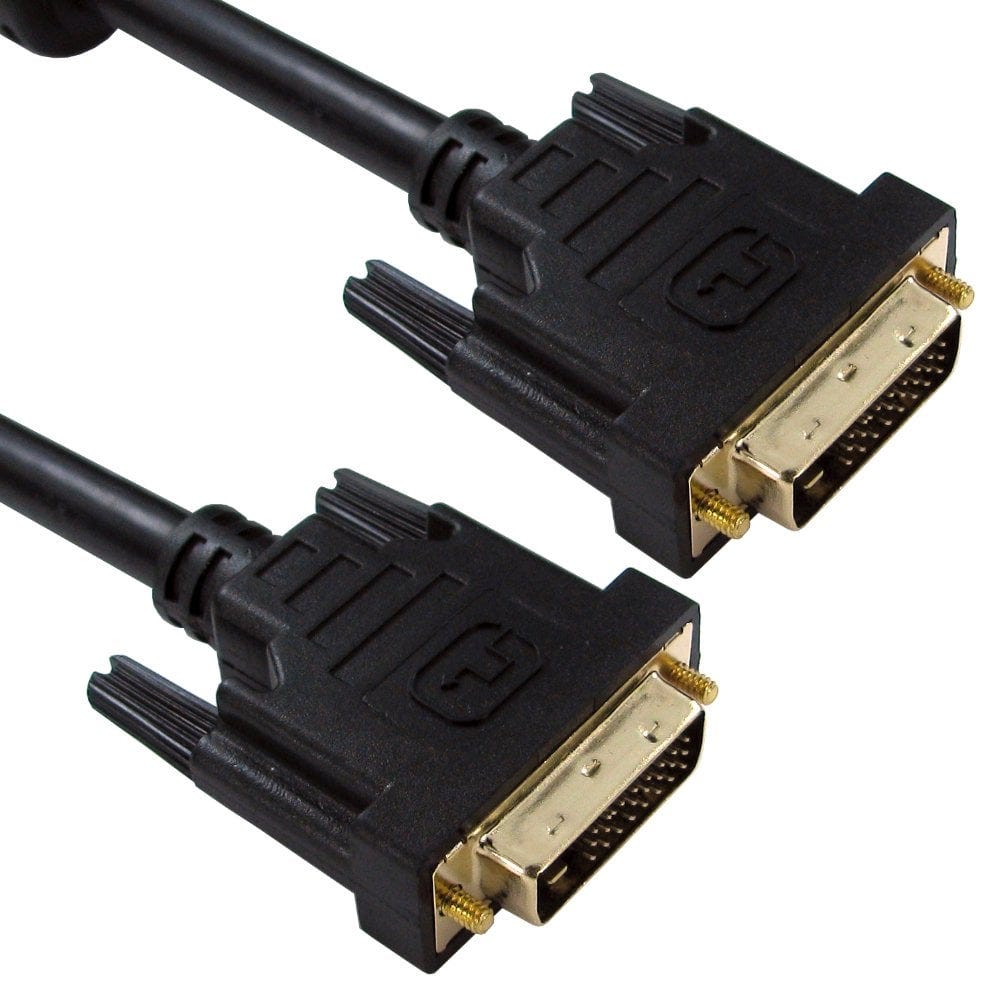
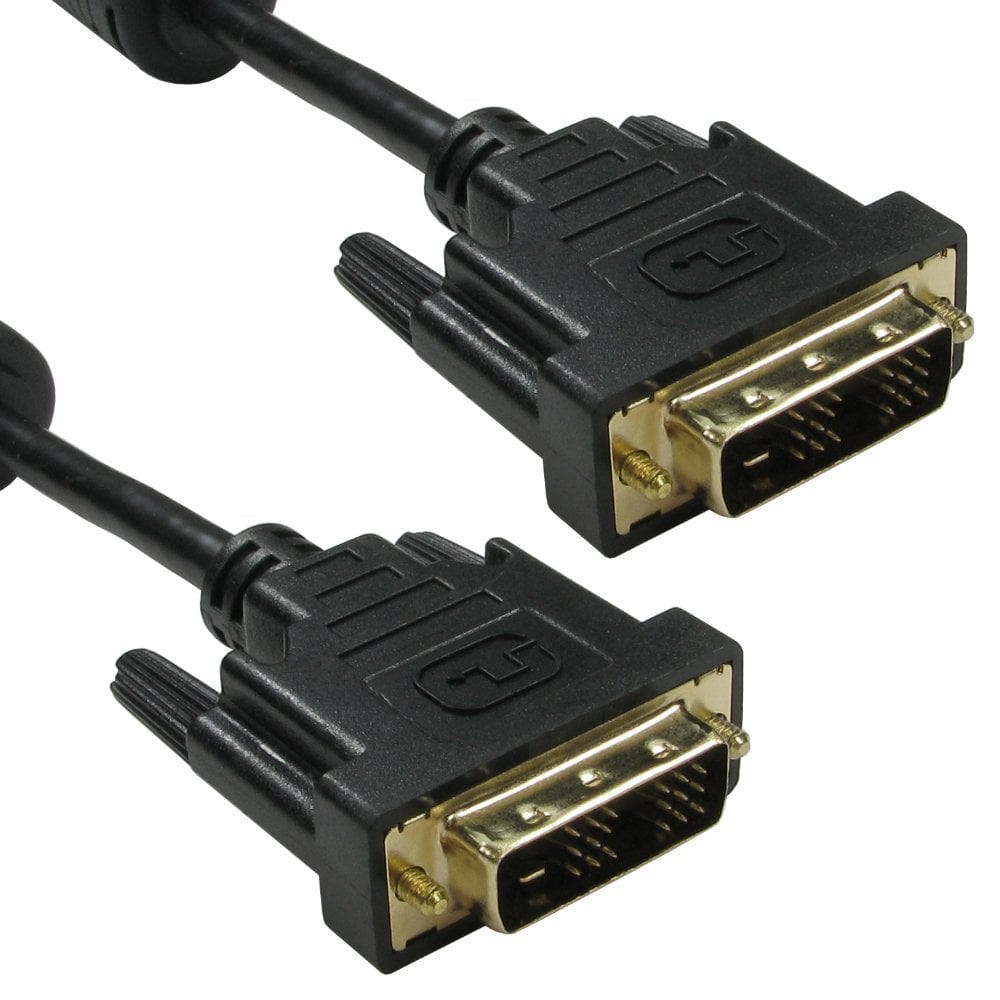
| DVI-D single link | Digital only | 18 pins in two blocks with a gap in the middle (18+1) | |
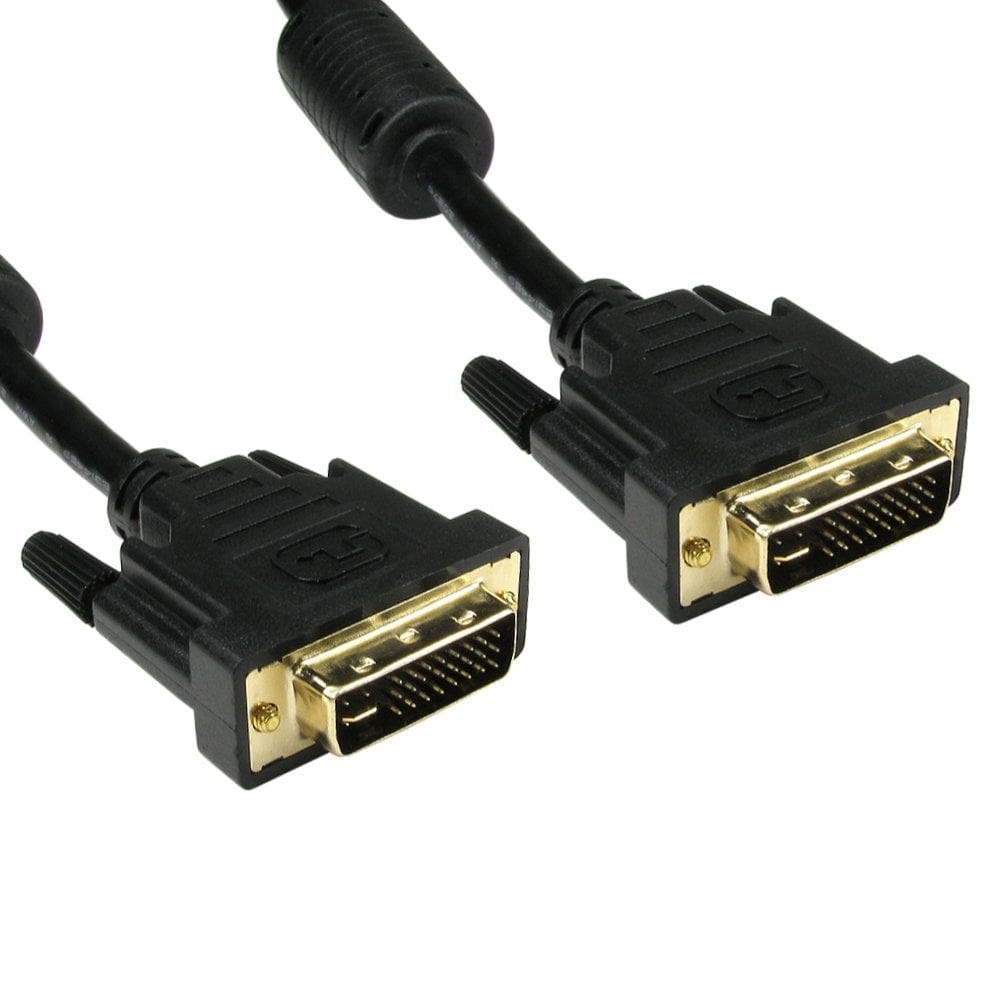
| DVI-D dual link | Digital only, twice the data | 24 pins in a full block (24+1), flat blade on its own | |
| DVI-I dual link | Digital and analogue | 24 pins, with four extra pins around the flat blade (24+5) | |
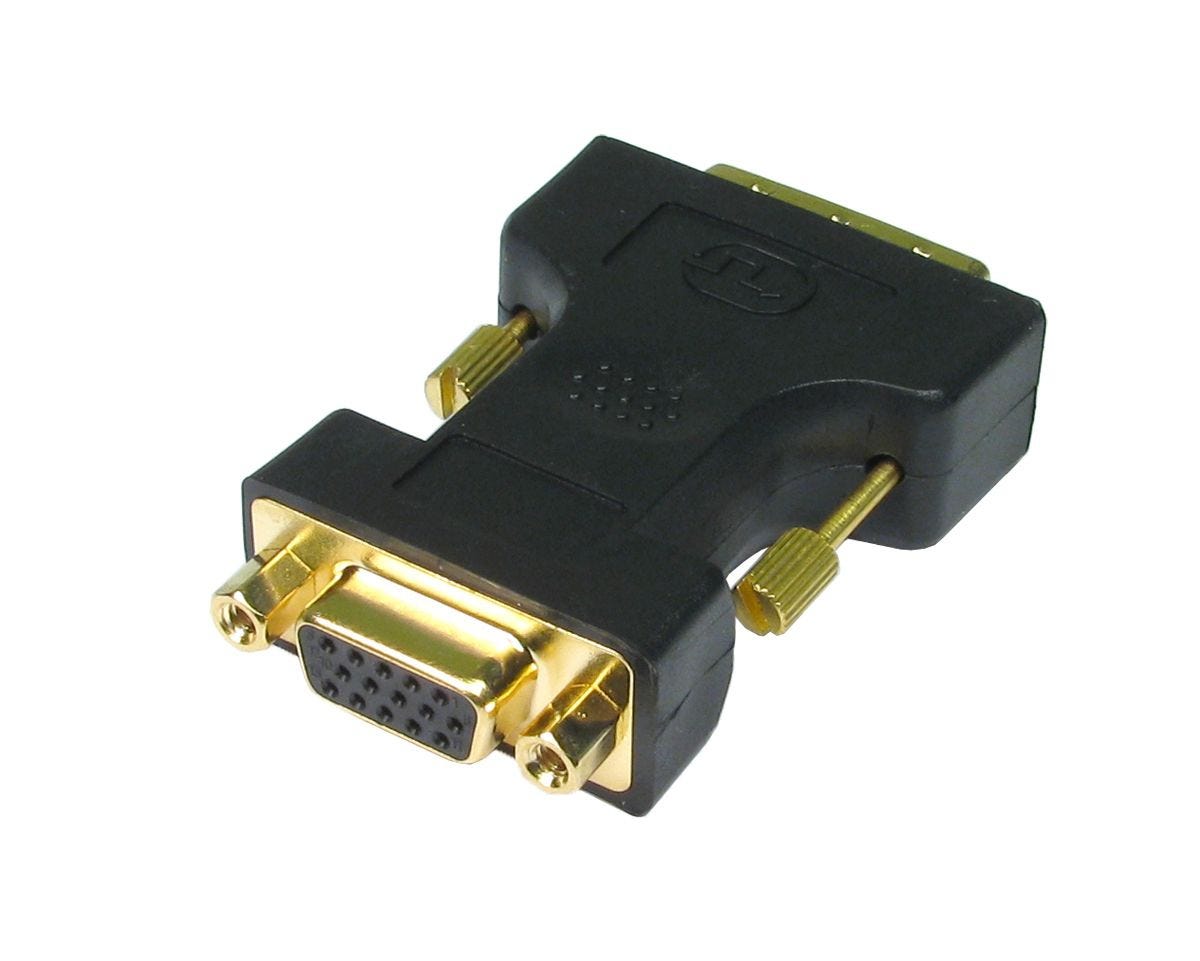
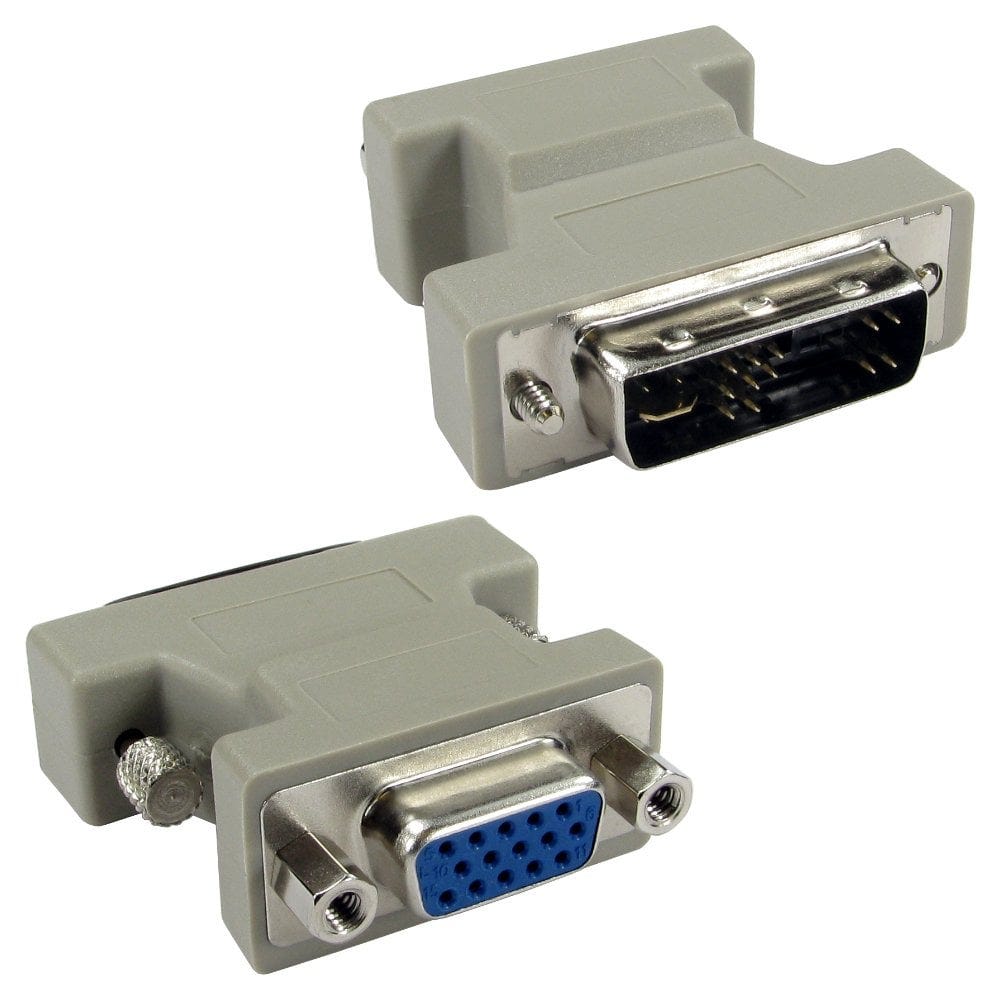
| DVI-A | Fewer pins, with the four analogue pins around the blade | Analogue only | Found on DVI to VGA cables and adapters |
"DVI-D" is the type most people need: it is the digital connection used by monitors and graphics cards. Drawings are simplified views of the plug face.
Which plug fits which socket?
| Plug on the cable | DVI-D socket | DVI-I socket |
|---|---|---|
| DVI-D (single or dual link) | Yes | Yes, using the digital signal |
| DVI-I | No, the analogue pins will not go in | Yes |
| DVI-A | No | Yes, using the analogue signal |
So a DVI-D cable is the safe choice for connecting a computer to a monitor: it fits both kinds of socket. You only need DVI-I or DVI-A when an analogue signal is involved, such as connecting to a VGA monitor.
Single link or dual link?
- Single link handles up to 1920 x 1200 at 60Hz, which covers most office and Full HD monitors.
- Dual link carries twice the data, needed for 2560 x 1440 and 2560 x 1600 monitors, and for 1080p gaming monitors at 120Hz or 144Hz.
A dual link cable works perfectly with single link screens too, so if you are not sure, choose dual link. A single link cable on a high resolution monitor usually gives a lower resolution or a blank screen. Both the graphics card and the monitor need dual link support for the higher modes.
DVI to HDMI, VGA, DisplayPort and USB C
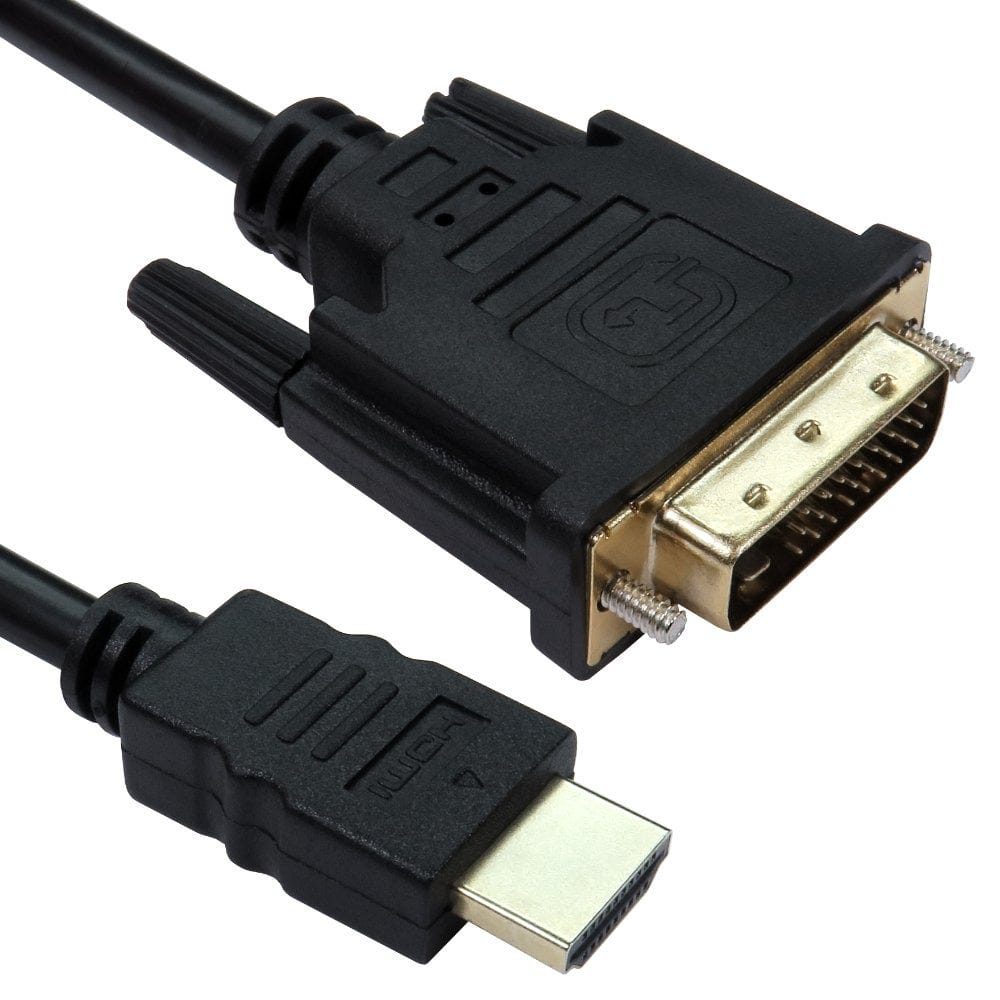
- DVI to HDMI: DVI-D and HDMI carry the same digital picture, so an HDMI to DVI cable or an adapter such as our HDMI female to DVI-D male or HDMI male to DVI-D female adapter works in either direction with no converter. DVI normally carries no sound, so connect audio separately. HDMI to DVI connections run at single link speed.
- DVI to VGA: works only from a DVI-I or DVI-A socket that carries an analogue signal, using a DVI-A to VGA cable or a DVI-A to VGA adapter. A DVI-D socket is digital only and needs an active converter.
- DisplayPort or USB C to DVI: for a newer computer and an older DVI monitor, use a DisplayPort to DVI or USB C to DVI cable or adapter. These work from the computer to the monitor only. Most run at single link resolutions, up to 1920 x 1200; for a 2560 x 1440 or larger DVI monitor, choose one listed as supporting dual link or 4K.
- Mini DVI: some older Mac laptops have a Mini DVI port; use a Mini DVI to DVI adapter or Mini DVI to HDMI adapter.
For every other combination of laptop and screen, see our guide how to connect a laptop to a TV or monitor.
Length, extensions and gender changers
- Choose the shortest cable that reaches comfortably. Longer cables, such as 10m, work best at lower resolutions; for a high resolution monitor keep the run as short as you can.
- A DVI-D dual link extension cable (plug to socket) adds length to an existing cable.
- Gender changers, such as the DVI-I dual link gender changer, join two DVI cables together.
Not sure which DVI cable you need? Call us on 0207 100 6326 and we will help.
Popular DVI cables and adapters