USB Connector Types
USB comes with five main plug shapes: USB A, USB B, Mini USB, Micro USB and USB C. This guide shows what each one looks like, what it is used for and how fast it can go, so you can tell which cable you need. The drawings show the end of each plug, roughly to scale with each other.
USB connectors at a glance
| Connector | Shape | Plug size | Found on | Either way up? |
|---|---|---|---|---|
| USB A | About 12 x 4.5mm | Computers, chargers, TVs, games consoles, car stereos | No | |
| USB B | About 8 x 7mm | Printers, scanners, audio interfaces, docks | No | |
| Mini USB | About 7 x 3mm | Older cameras, sat navs, MP3 players, dash cams, PS3 controllers | No | |
| Micro USB | About 7 x 2mm | Older Android phones and tablets, power banks, speakers, e-readers | No | |
| USB C | About 8.3 x 2.5mm | Current phones, tablets, laptops, monitors, chargers | Yes |
USB A
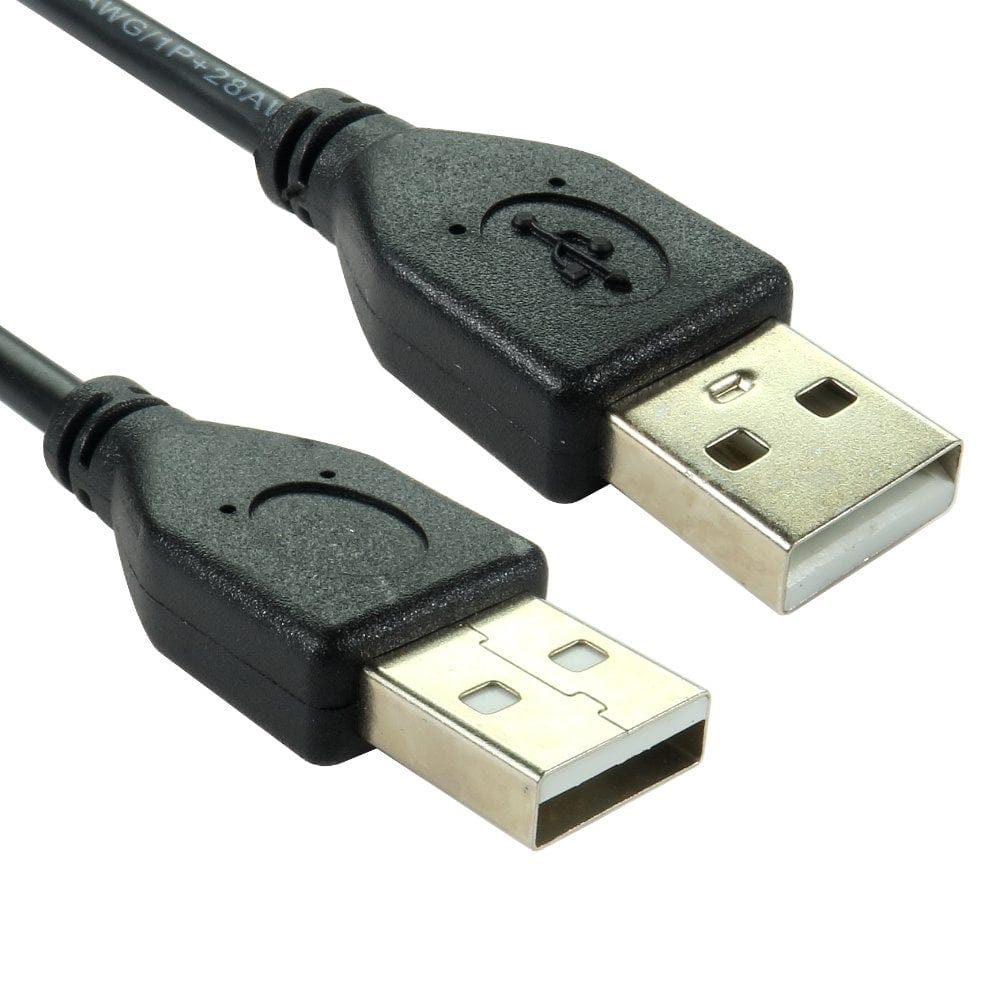
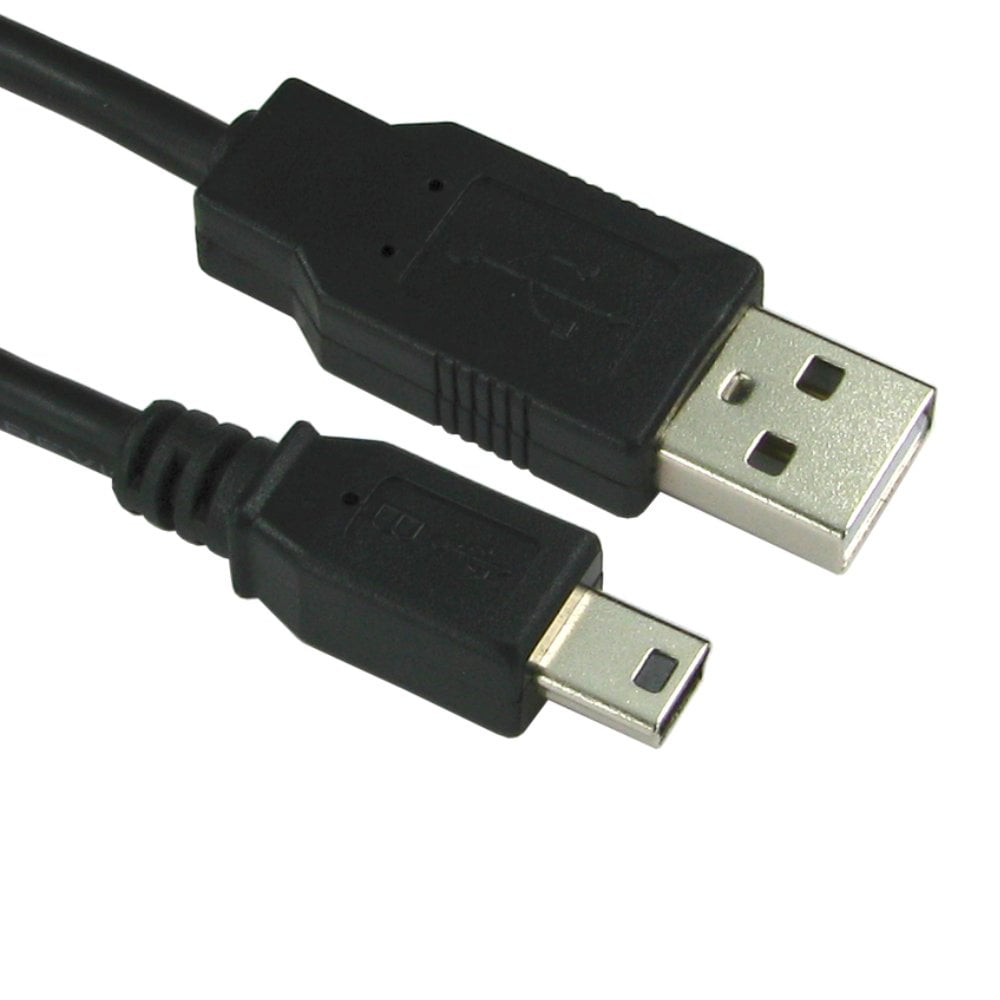
USB A is the flat, rectangular plug most people picture when they think of USB. It is the "host" end: the socket is on the computer, charger, TV, games console or car stereo, and the cable runs from there to the device. It only fits one way up.
USB A has been made to every USB speed from USB 1.1 to 10 Gbps. A blue plastic insert inside the plug or socket usually means USB 3.0 (5 Gbps) or faster; black or white normally means USB 2.0. A USB 3.0 plug works in a USB 2.0 socket and the other way round, at the slower of the two speeds.
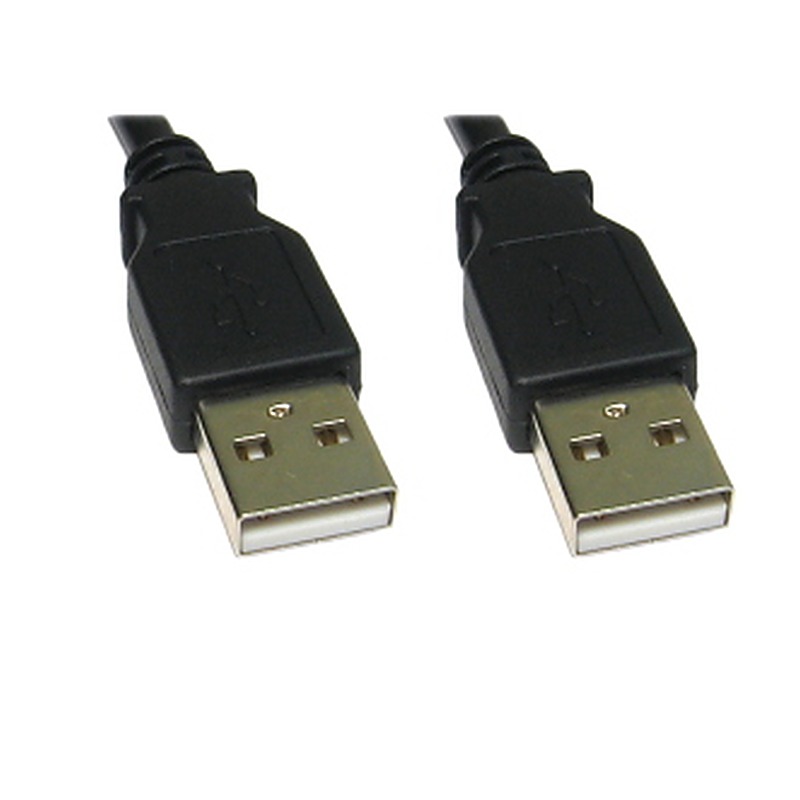
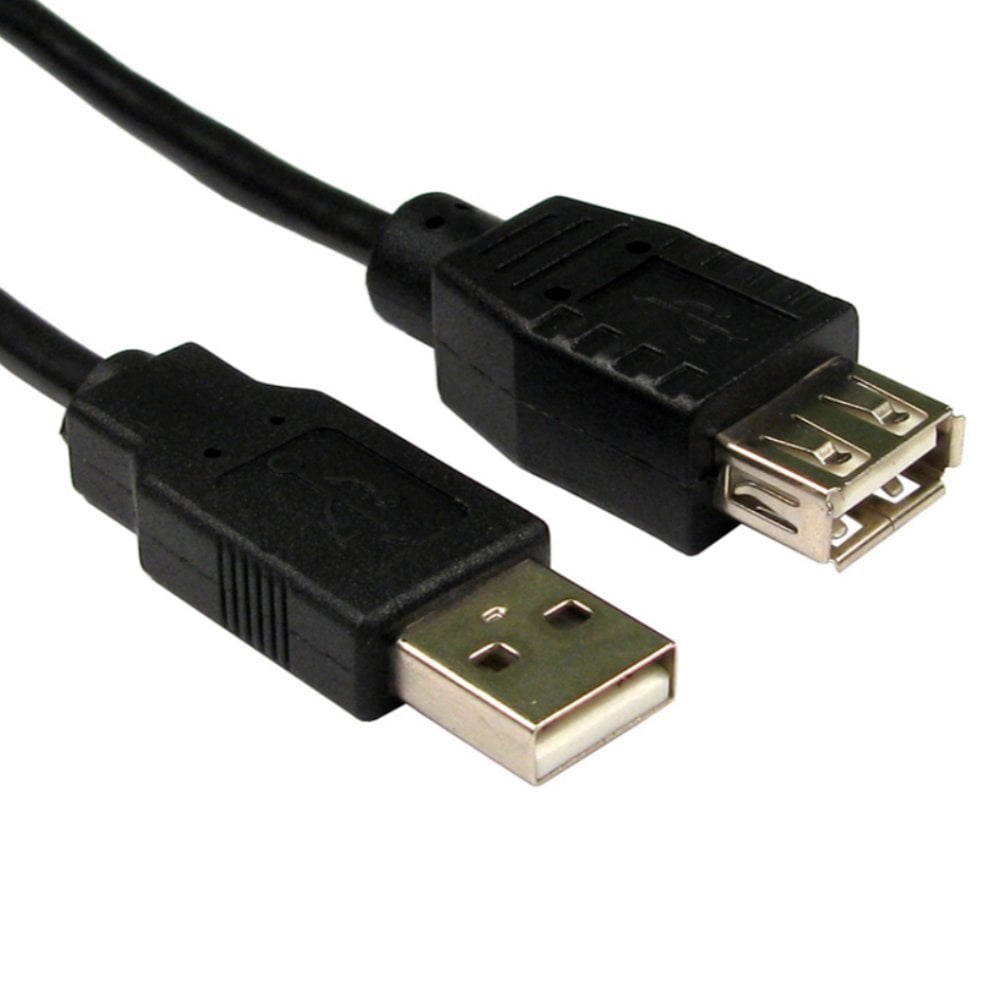
A cable with USB A at both ends (A to A) is mainly used for extending, for some external drive enclosures and for connecting to equipment with a USB A socket on it. An extension cable has a USB A plug at one end and a USB A socket at the other.
USB BUSB 3.0 B
USB B
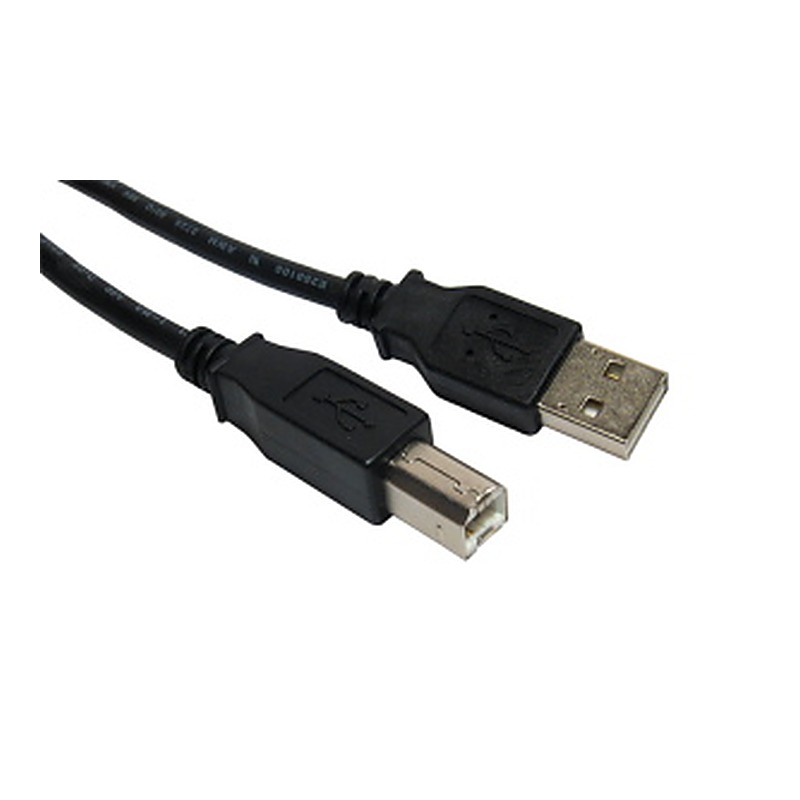
USB B is the squarer plug with two bevelled corners, found on printers, scanners, audio interfaces, MIDI keyboards, some external drives and docking stations. A USB A to B cable, often called a printer cable, connects these to a computer.
The USB 3.0 version of USB B has an extra section on top, which carries the faster 5 Gbps connection. A USB 3.0 B socket also accepts the ordinary USB 2.0 B plug (at USB 2.0 speed), but a USB 3.0 B plug will not go into a USB 2.0 B socket. If your device has the taller socket, use a USB 3.0 A to B cable to get the full speed.
Mini USB
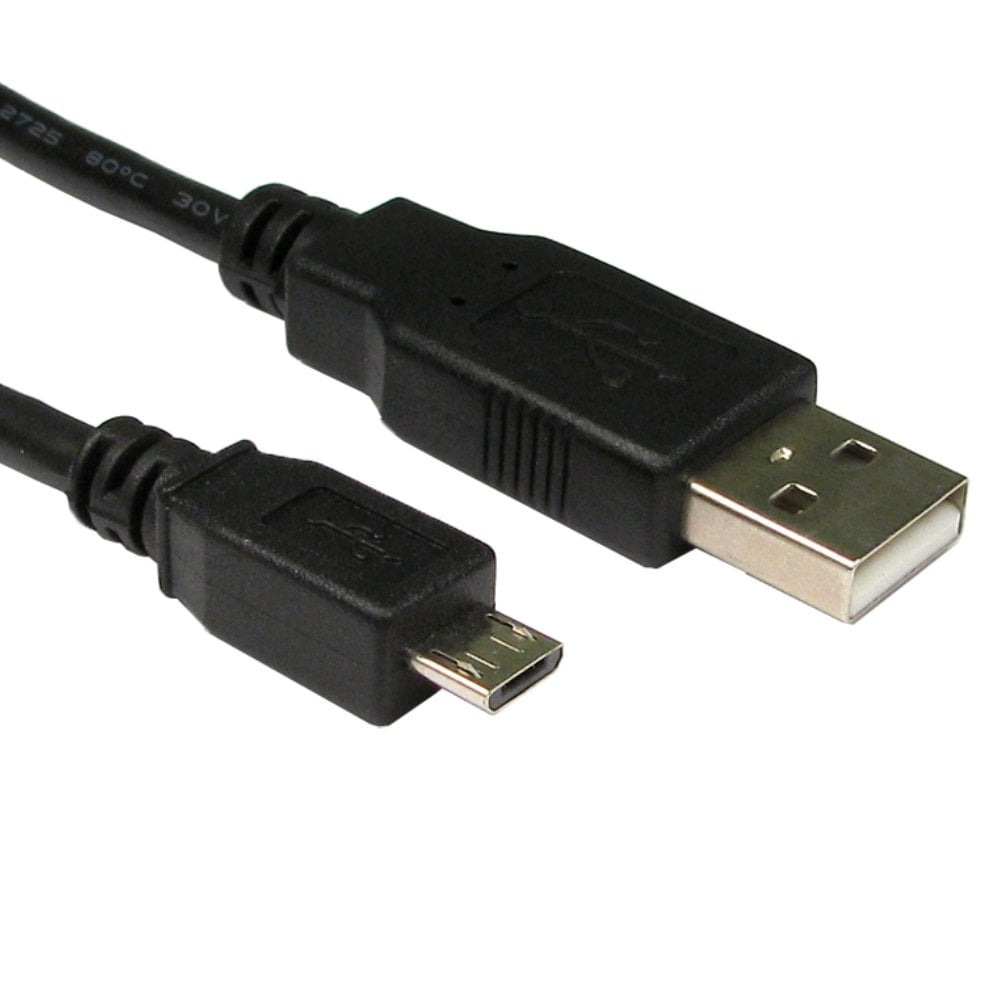
Mini USB (Mini B) is a small plug with stepped lower corners, around 3mm thick. It was common in the 2000s on digital cameras, sat navs, MP3 players, card readers, external hard drives and PlayStation 3 controllers, and is still used on some dash cams and test equipment. Micro USB and then USB C replaced it, but Mini USB cables are still widely needed for older kit. Mini USB carries USB 2.0 speeds.
Micro USBMicro USB 3.0
Micro USB
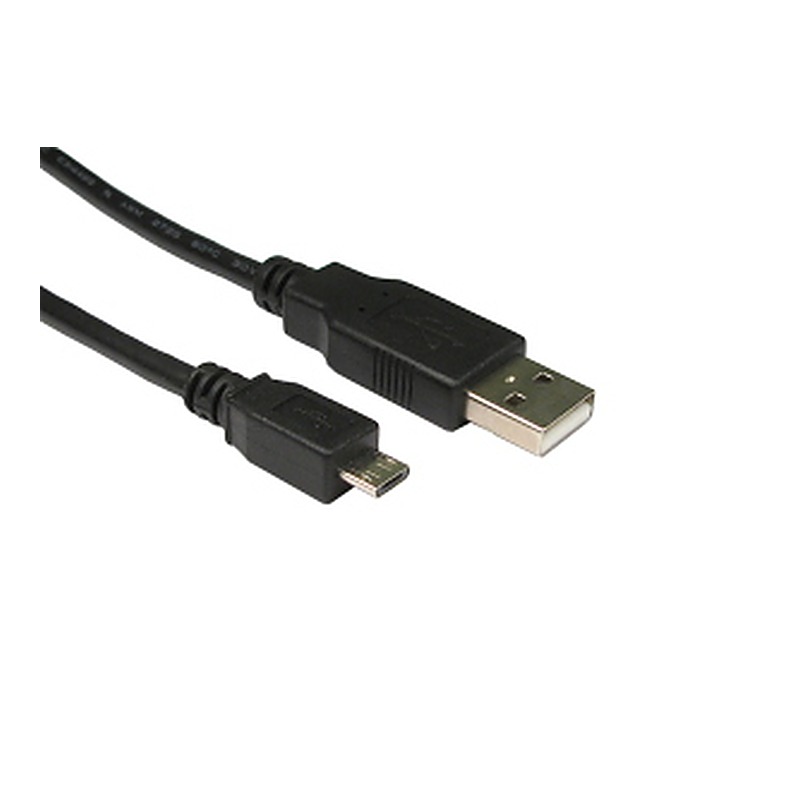
Micro USB (Micro B) is thinner than Mini USB, under 2mm, with bevelled lower corners. It was the standard charging plug on Android phones and tablets for most of the 2010s and is still used on many power banks, Bluetooth speakers and headphones, e-readers, cameras and game controllers. It fits one way up and carries USB 2.0 speeds.
Micro USB 3.0 is a wider plug with a second section beside the normal Micro USB shape. It is mostly found on portable hard drives. An ordinary Micro USB cable will fit the larger half of the socket and work at USB 2.0 speed, but for full 5 Gbps speed use a Micro USB 3.0 cable.
An OTG ("on the go") adapter lets a phone or tablet act as the host, so you can plug a USB stick, keyboard or mouse into it. We stock a Micro USB OTG adapter and a USB C OTG adapter; the phone or tablet has to support OTG.
USB C
USB C is the small, rounded plug used on current phones, tablets, laptops, monitors, chargers and many accessories. It is the same either way up and it can be at both ends of a cable, so the same lead connects a laptop to a phone, a charger or a monitor.
The plug shape is the same for every USB C cable, but what the cable can do varies a lot. A basic USB C cable may only carry USB 2.0 data (480 Mbps) and 60W of charging, while others carry 10 Gbps, 20 Gbps, or 40 to 80 Gbps with USB4, charging up to 100W or 240W, and video to a monitor. Check the speed, wattage and video support on the product before you buy, and match the cable to what your devices can do.
USB C to USB A cables connect newer phones and devices to older computers and chargers. Apple's Lightning plug, used on iPhones from the iPhone 5 to the iPhone 14, is not USB; the iPhone 15 and later use USB C.
USB speeds and version names
The plug shape and the speed are separate things: the version number tells you how fast the connection is, and the plug tells you what it fits. The version names have changed several times, so the same speed can be sold under different names.
| Version | Also called | Top speed | Connectors |
|---|---|---|---|
| USB 2.0 | Hi-Speed | 480 Mbps | A, B, Mini, Micro, C |
| USB 3.2 Gen 1 | USB 3.0, USB 3.1 Gen 1, USB 5Gbps | 5 Gbps | A, B (3.0), Micro (3.0), C |
| USB 3.2 Gen 2 | USB 3.1 Gen 2, USB 10Gbps | 10 Gbps | A, C |
| USB 3.2 Gen 2x2 | USB 20Gbps | 20 Gbps | C only |
| USB4 | USB 40Gbps, USB 80Gbps | 40 or 80 Gbps | C only |
Everything is backwards compatible: a faster cable or device works with a slower one, at the slower speed.
Charging over USB
A computer's USB A port gives a small amount of power, around 2.5W on USB 2.0 and 4.5W on USB 3.0, which is why phones charge slowly from a laptop. Wall chargers with USB A sockets commonly give up to 12W. USB C chargers that support USB Power Delivery can give much more: up to 100W over a cable rated for 5 amps, and up to 240W with the latest chargers and 240W cables, enough for most laptops. The charger, the cable and the device all have to support the higher power for it to be used, otherwise they agree on a lower, safe level.
For fast charging, the cable matters as much as the charger: thin or very long cables can slow charging down. Short cables and ones rated for the full wattage give the best results.
Which USB cable do I need?
- Look at the socket on each device and match it to the drawings above. Most cables have USB A or USB C at the computer or charger end.
- Check whether either socket is USB 3.0 or faster (a blue insert, a taller USB B socket or a wider Micro USB socket). Use a cable of the same version to get the full speed.
- For USB C, check the speed, charging wattage and video support you need.
- Measure the length. USB 2.0 cables work up to 5m and USB 3.0 up to about 3m; for longer runs use an active USB extension cable.
Still not sure? Call us on 0207 100 6326 and we will help you find the right cable.
Popular USB cables